Usage
GameVault 2 is used in a short loop: open the library, download a game, install it, press play. This page walks through that loop and the screens around it. Where the files end up is described under data locations.
Library and game page
The library shows every game your server offers and the ones you already have installed. Use the search, filter and sort controls above the grid; bookmarks collect the games you keep coming back to.
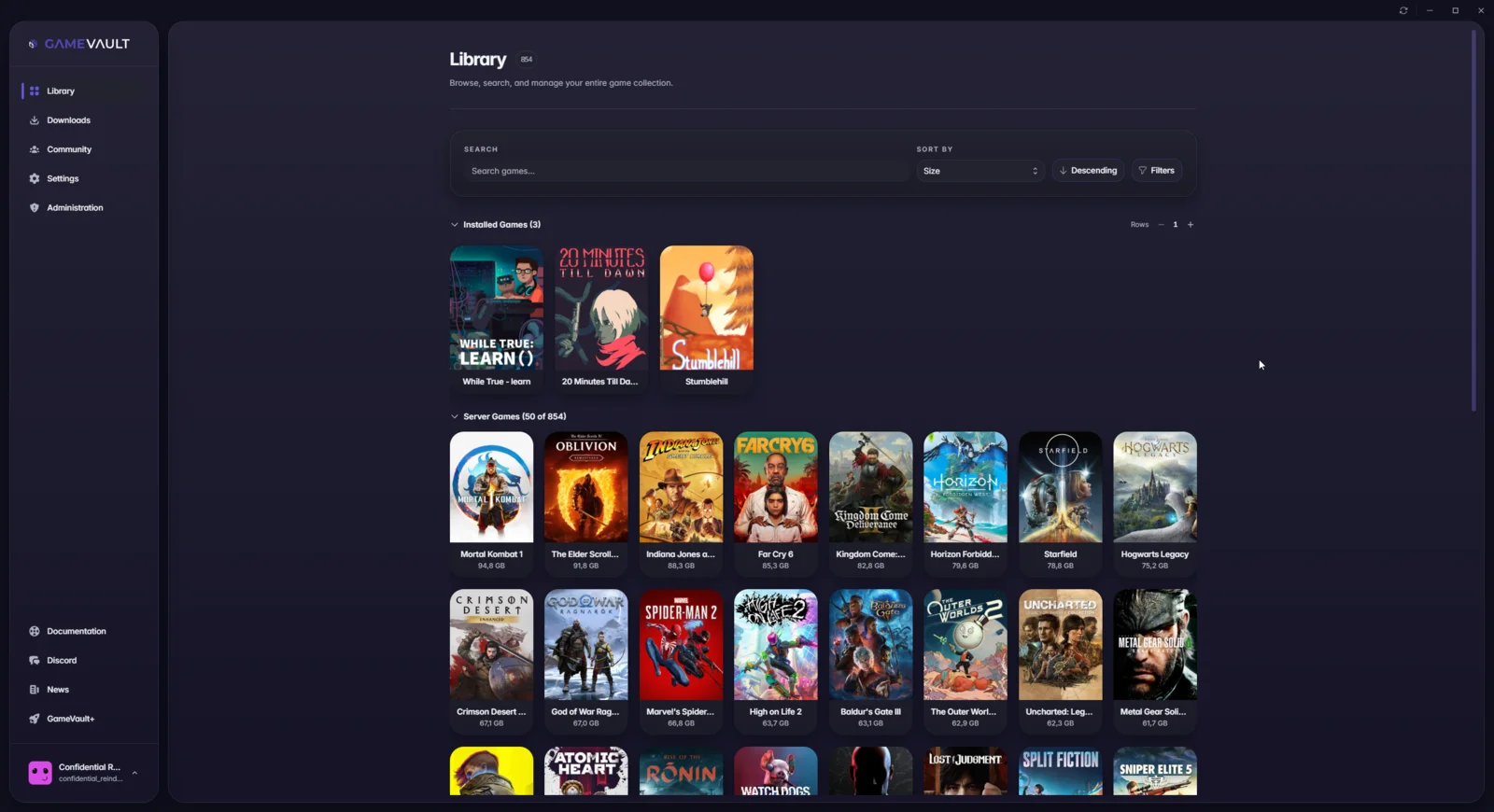 Installed games are listed above the server library
The game page adds the media player for trailers and screenshots, the full description, the progress of every user, and buttons to download or launch the game.
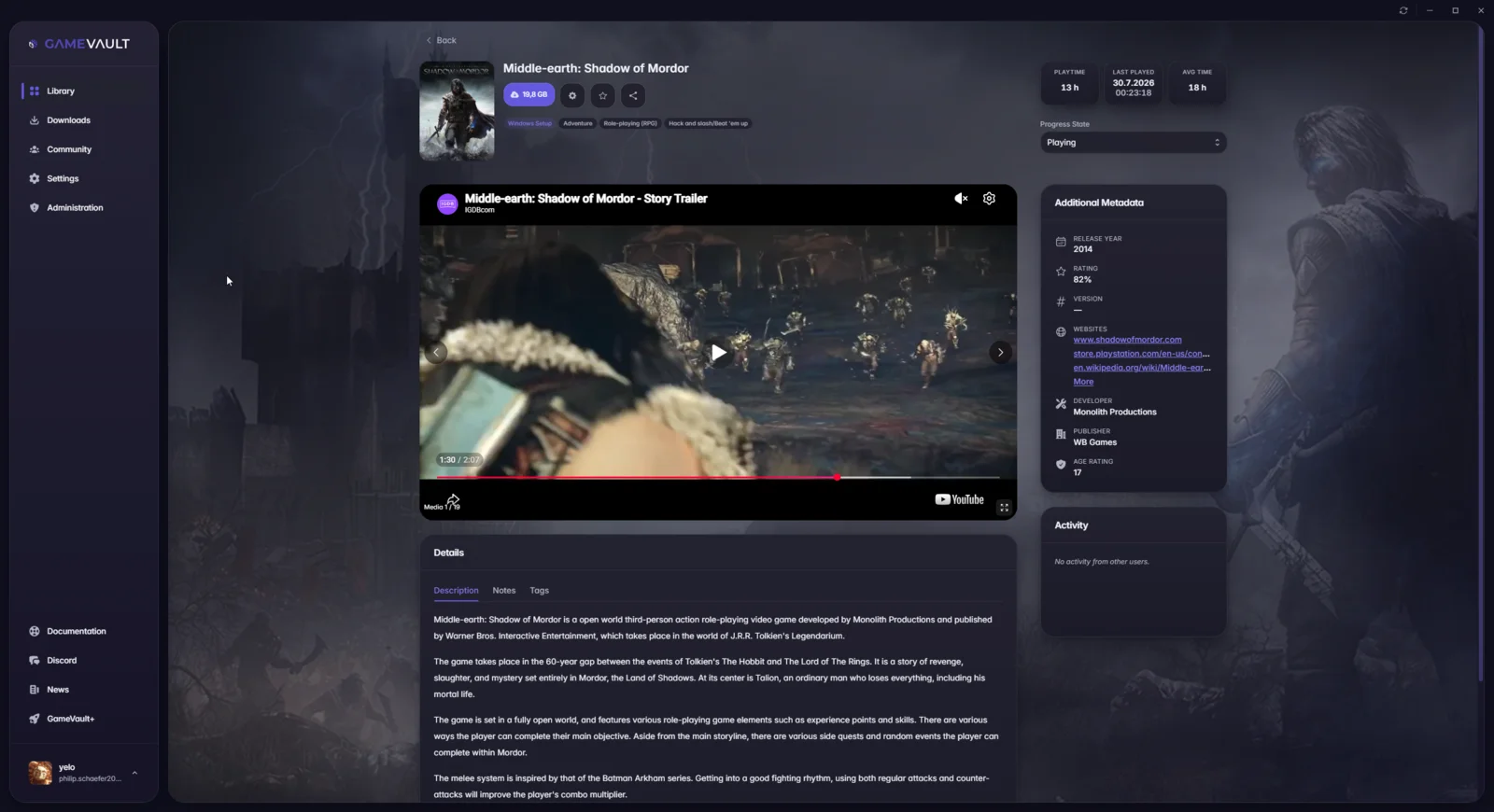 The game page brings media player, progress and metadata together
Choosing a version
If a game has multiple versions on the server, the download button opens a version picker. The server ranks the versions and marks the highest one as the default, but you can pick any entry and download another version later.
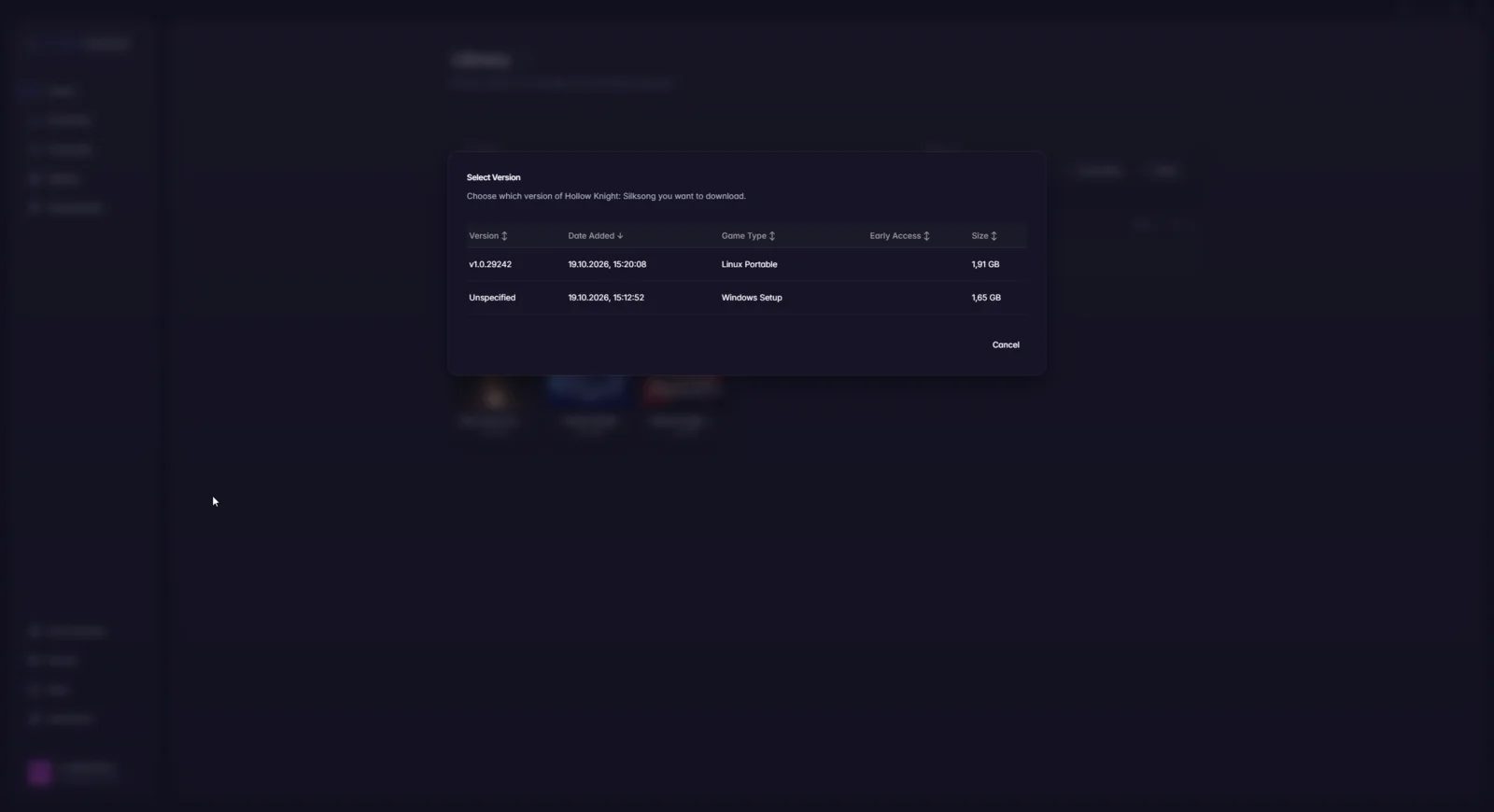 Pick a version before the download starts
Downloading a game
Only download games from servers you trust. If your antivirus alerts during a download or installation, stop, delete the downloaded files, and tell the server admins.
Pressing the download button adds the game to the download queue. The queue shows progress, speed and the remaining time, and lets you abort a download. The archive is written to the download folder of that game and version; see data locations.
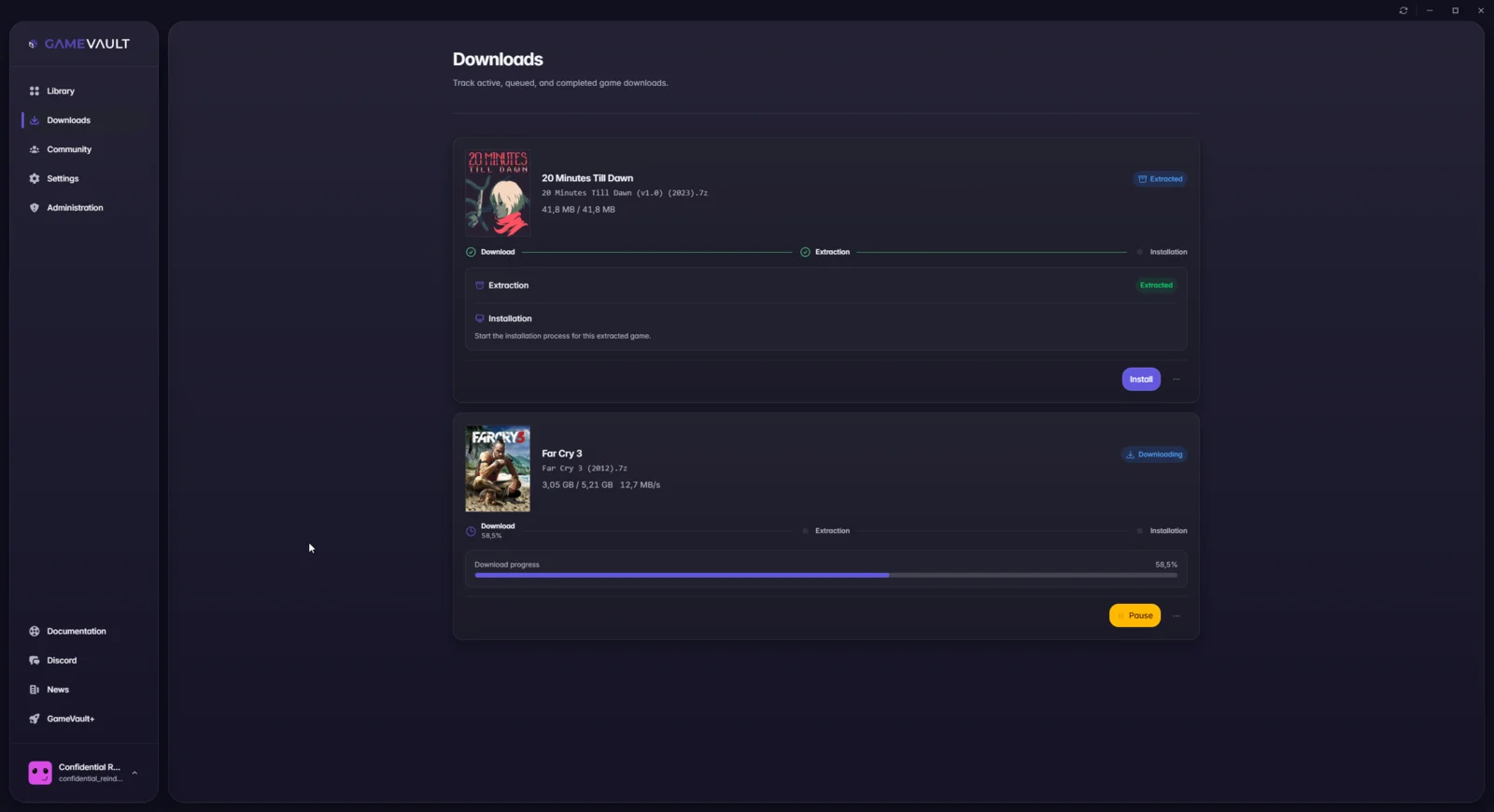
Extracting
GameVault serves games as archives, so a download has to be extracted before it can be installed. Press Extract after the download finishes. The progress bar shows the extraction progress and an estimate; large or heavily compressed games take longer.
If extraction fails, the client shows the error and offers a retry. Retrying needs the archive, so do not delete it first. Repeated failures usually mean a damaged upload: extract the archive manually to check, or ask your server admins to verify the files.
Installing
There are two relevant game types here, portable games and setup installers. The server detects the type from the files; admins can override it with a type in the file name.
Portable games
Portable games are ready to run. Press Install and GameVault moves the extracted files into the installation folder.
Setup games
Setup games need their installer to run. Pick the setup executable from the dropdown and press Install.
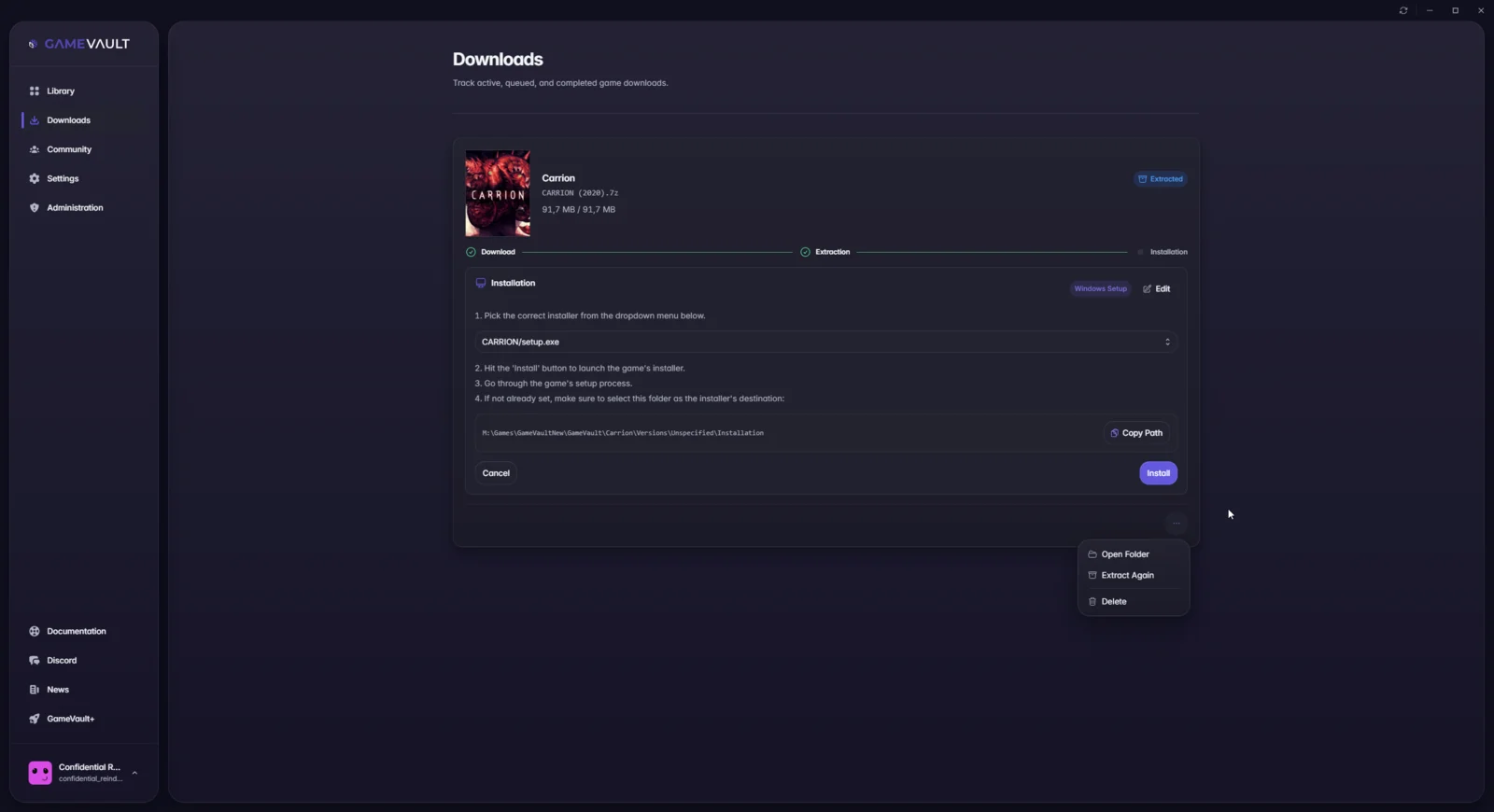 GameVault shows the destination folder to select in the installer
GameVault tries to automate the installer: it estimates silent-install parameters and preconfigures the target folder. Installers that refuse silent installs still need you to click through them. When the installer asks for a destination, select the installation folder of that game (shown in the game settings). If the game ends up somewhere else, GameVault cannot find its executable afterwards; uninstall it and repeat the step.
When the detected type is wrong
- Portable game shows a setup executable: the game is marked as setup on the server. Ask your admins to fix the type. To play now, move the files from the installation folder back into the download folder, run the installer manually and point it at the installation folder.
- Setup game shows the game executable: the game is marked as portable on
the server. Ask your admins to fix the type, then move the contents of the
download folder's
Extractionsubfolder into the installation folder.
Removing the download
Once a game runs, delete its download with the trash icon in the downloads tab. The installation stays usable.
Launching a game
Installed games appear in the Installed games section. Press Play to start one. If GameVault picked the wrong executable, change it in the game settings; launch output and errors go to the launch log.
On Linux, games run through umu-launcher; see Linux specifics.
Game settings
The gear icon on the box art or on the game page opens the game settings. Three tabs change things on your computer:
- Installation: installation folder, uninstall and disk usage.
- Game files: the files on the server. Only admins can delete them.
- Launch options: executable, launch parameters, run as administrator.
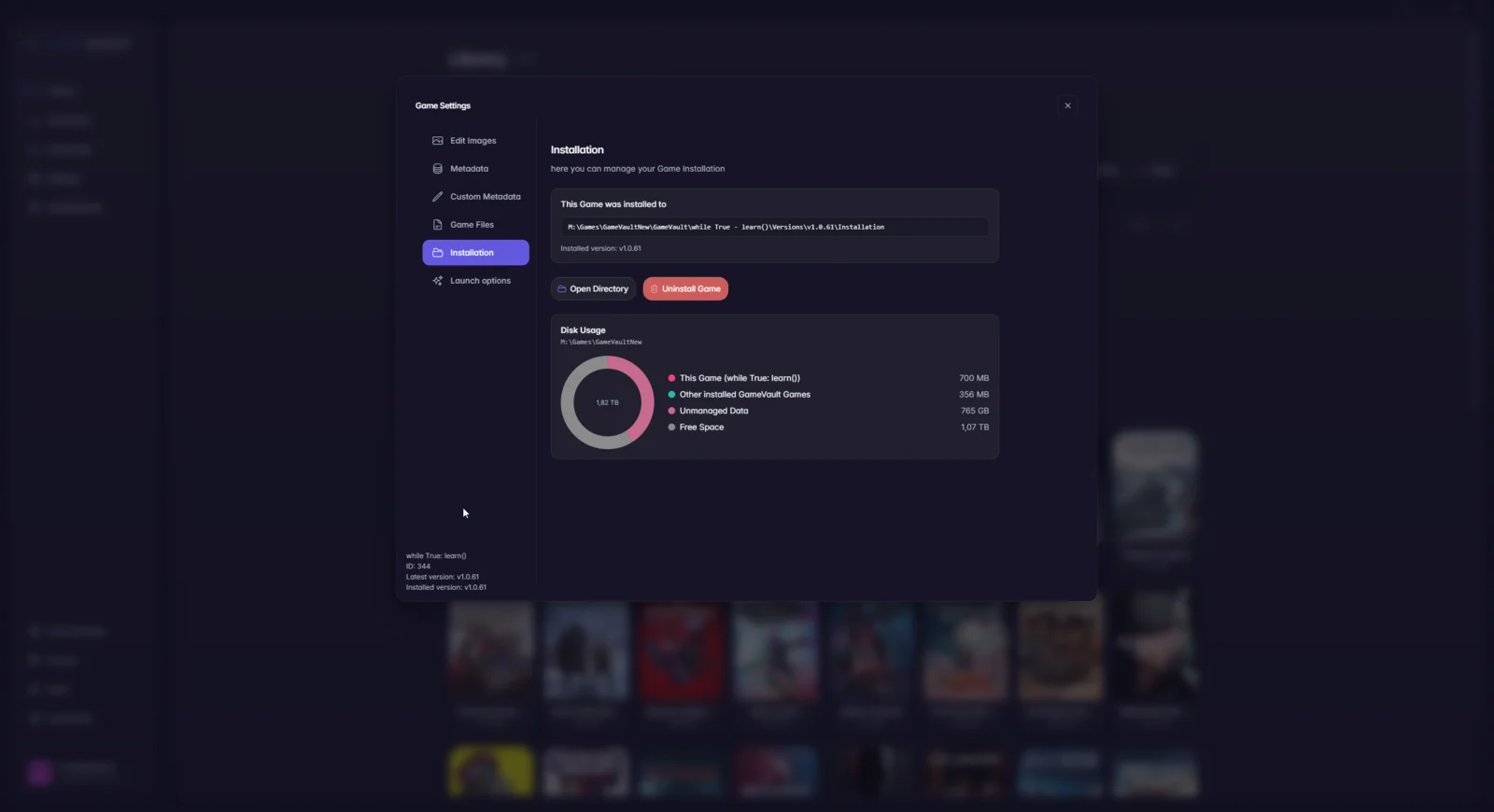 Installation tab: path, uninstall and disk usage
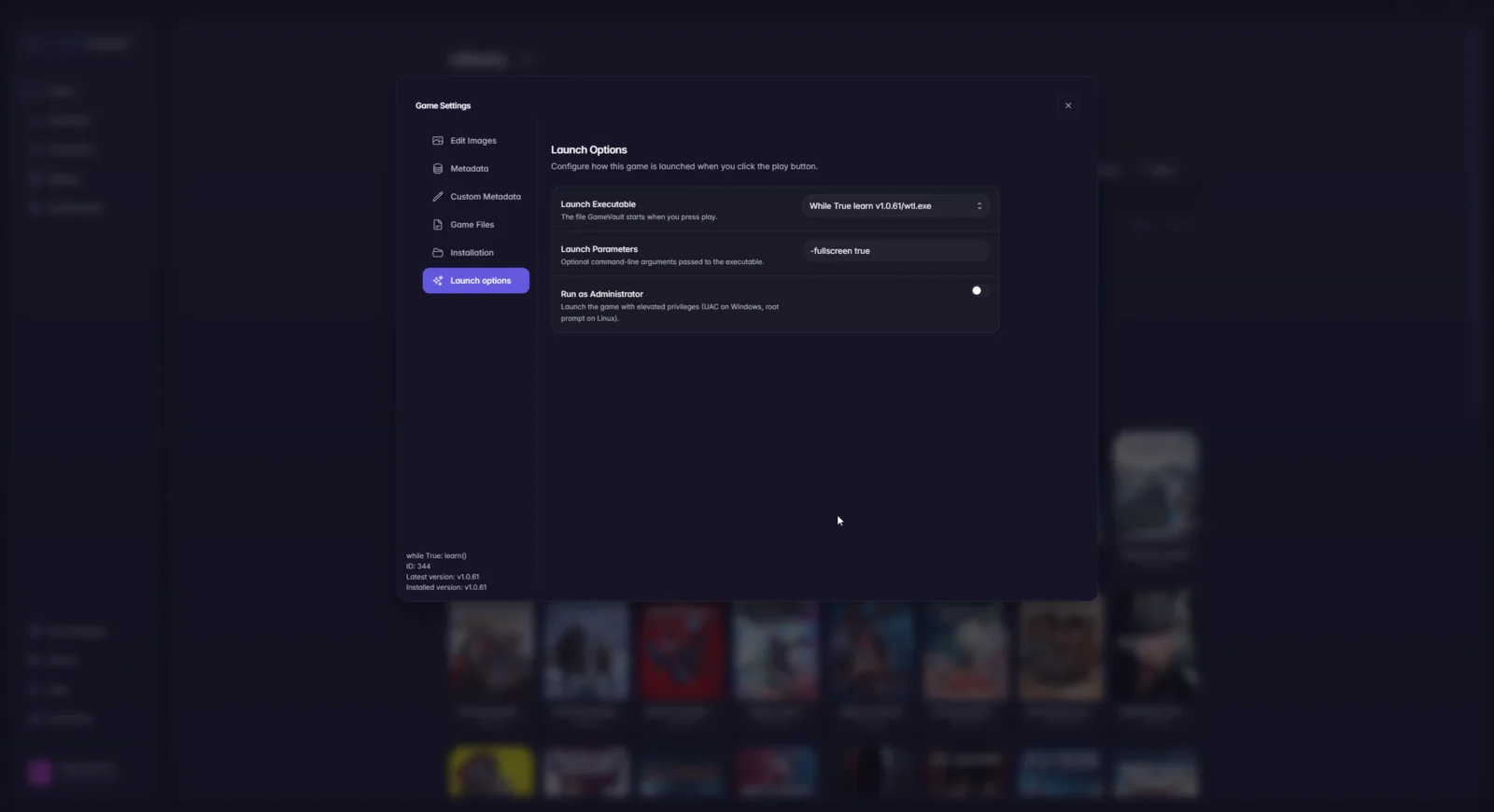
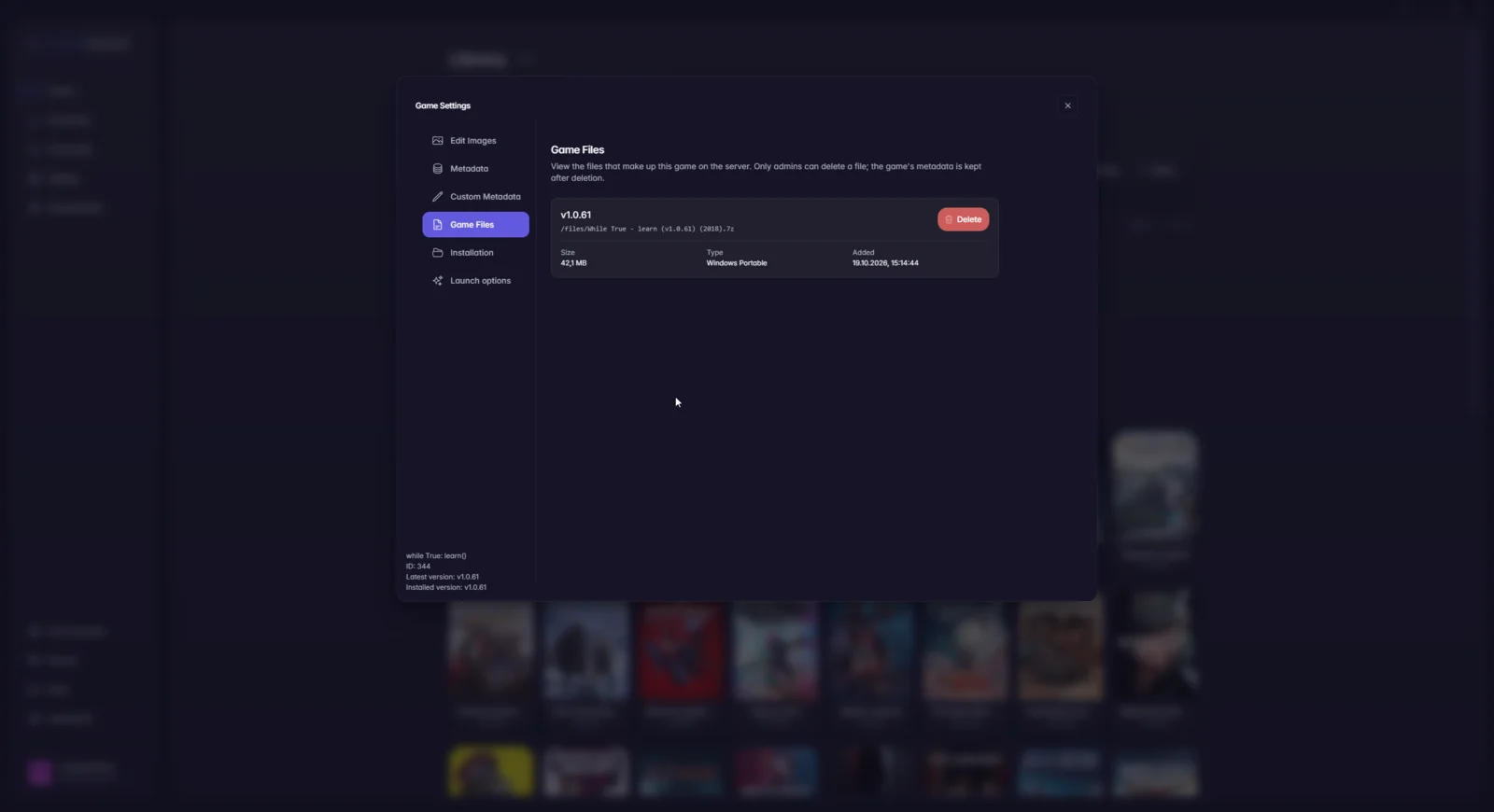
Playtime and progress
Playtime tracking starts with the client. While a game executable runs from an installation folder, the client counts the time and reports it to the server. Executables on the ignore list are skipped. Progress recorded while the server is unreachable is synced once the connection is back.
A progress entry is one user's activity for one game: playtime, completion state and some derived data. Change or delete the state in the community view; some states also change on their own, for example to Playing when you launch the game.
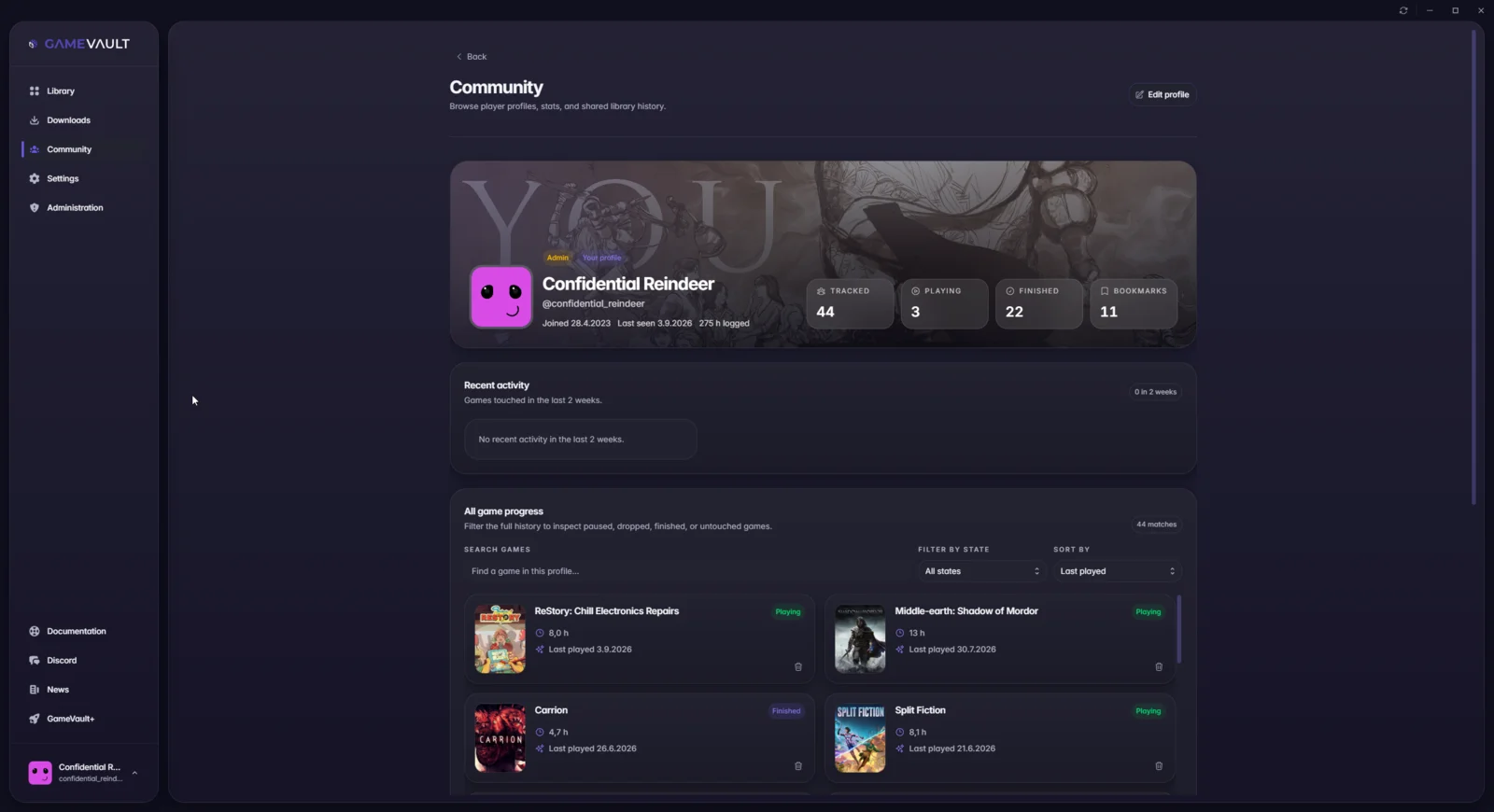 Tracked, playing, finished and bookmarked games at the top of a profile
Progress tracking does not include save games. Save game synchronisation is a GameVault+ feature and works separately from progress.
Community
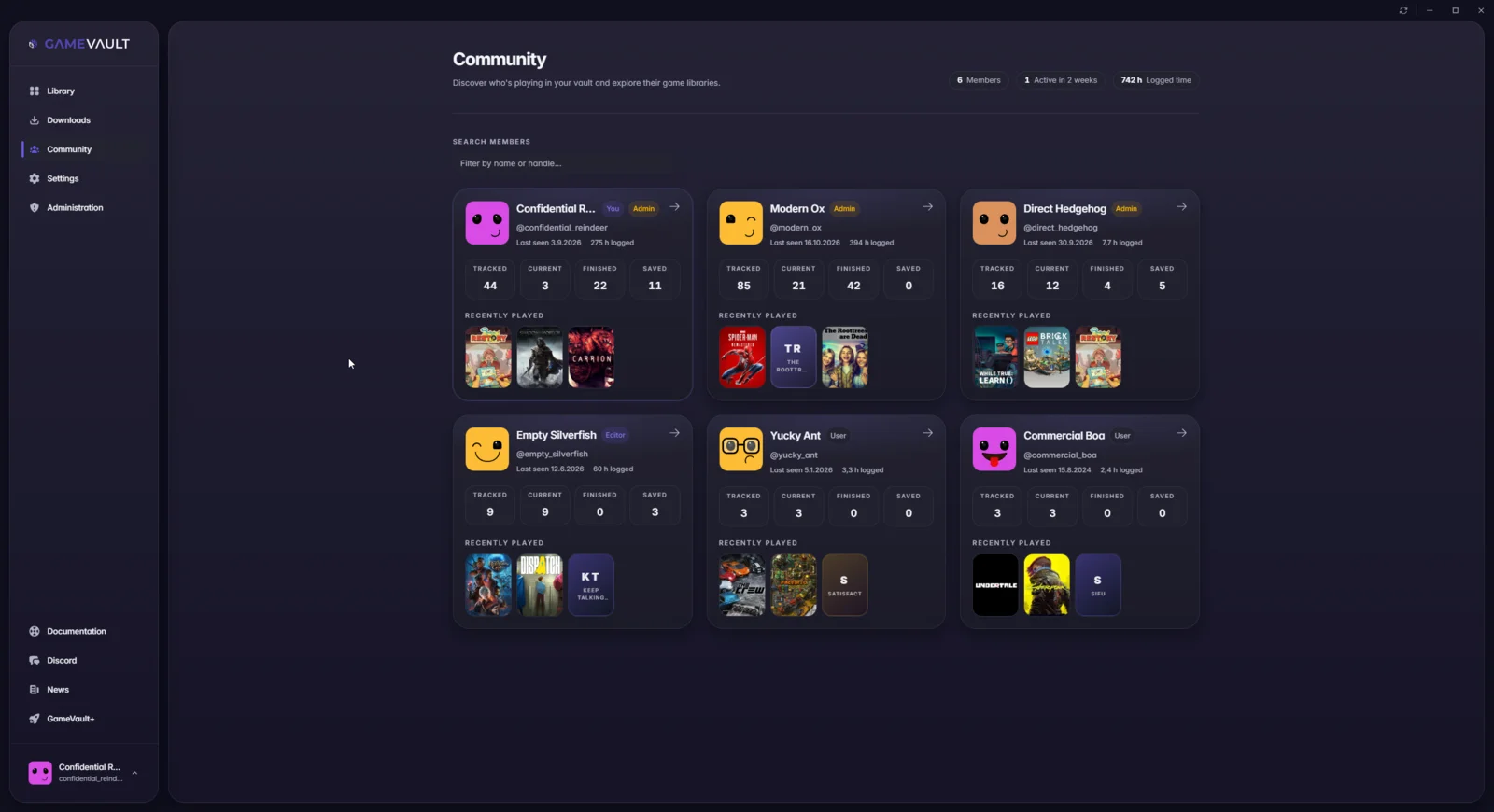
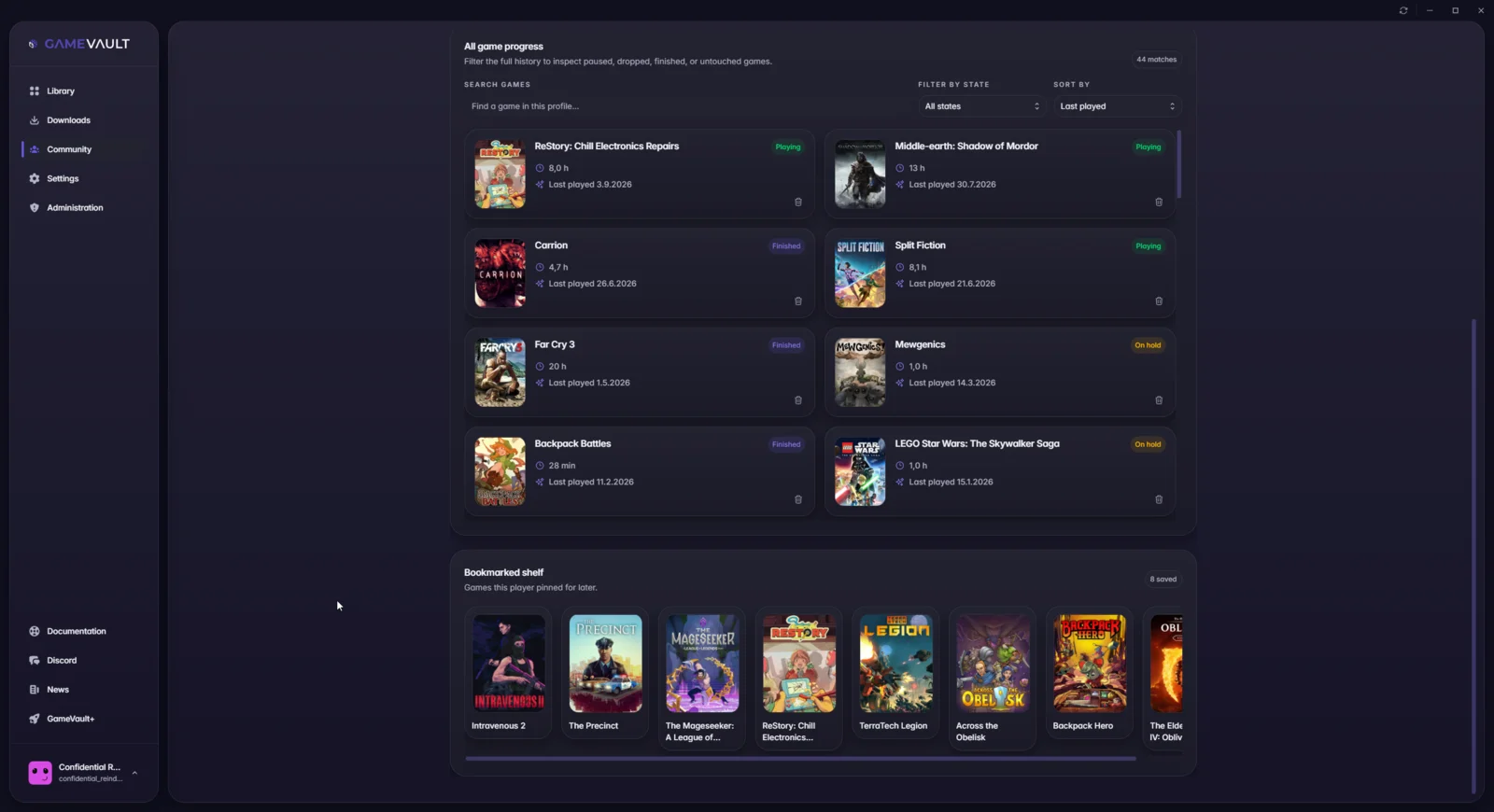
The community tab lists every member with their tracked, current, finished and saved counts, plus the games they played recently. Open a member to see the full progress list and their bookmarks.
Editing games
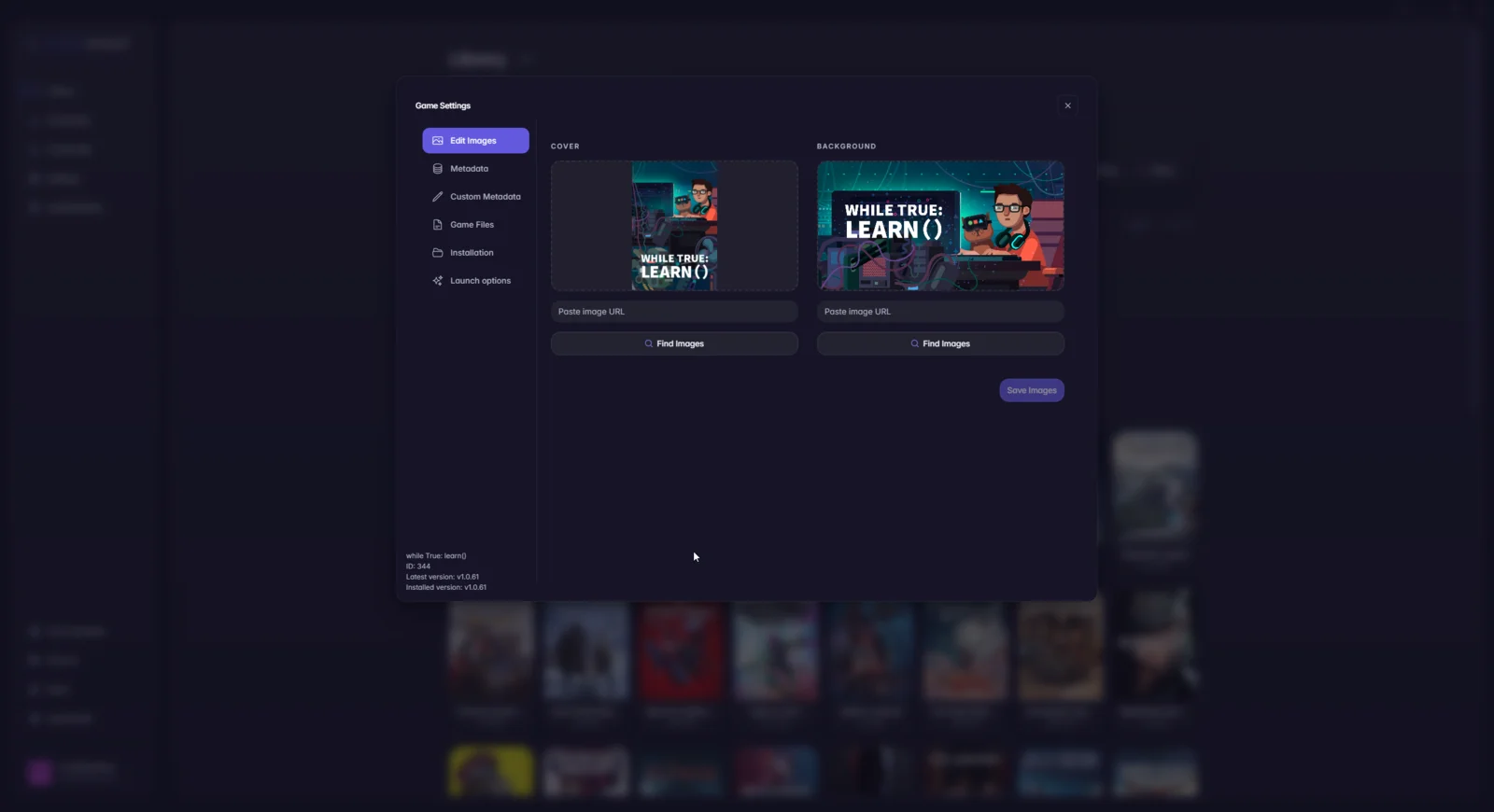
Members with the EDITOR role or higher can change how a game is presented.
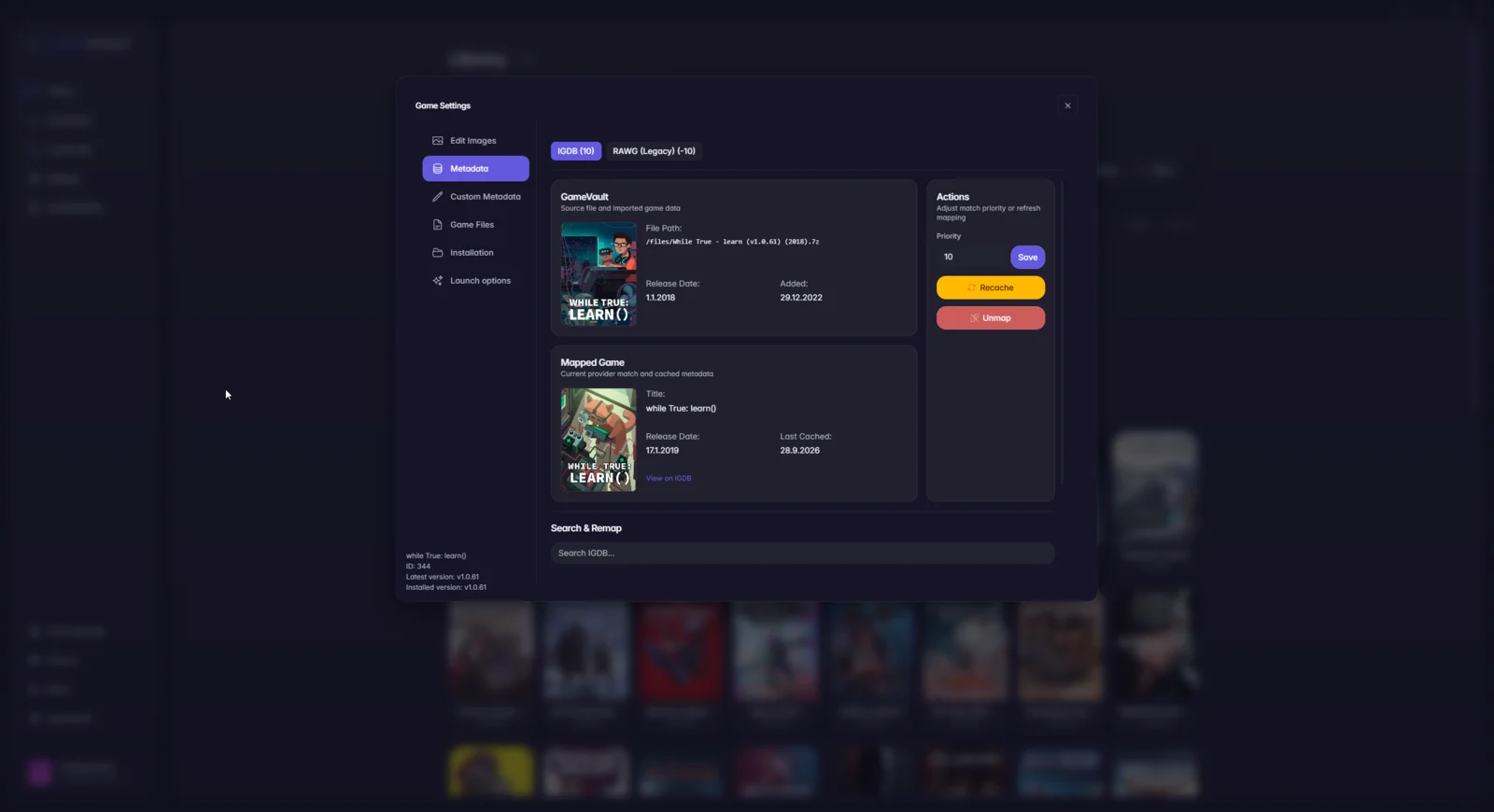
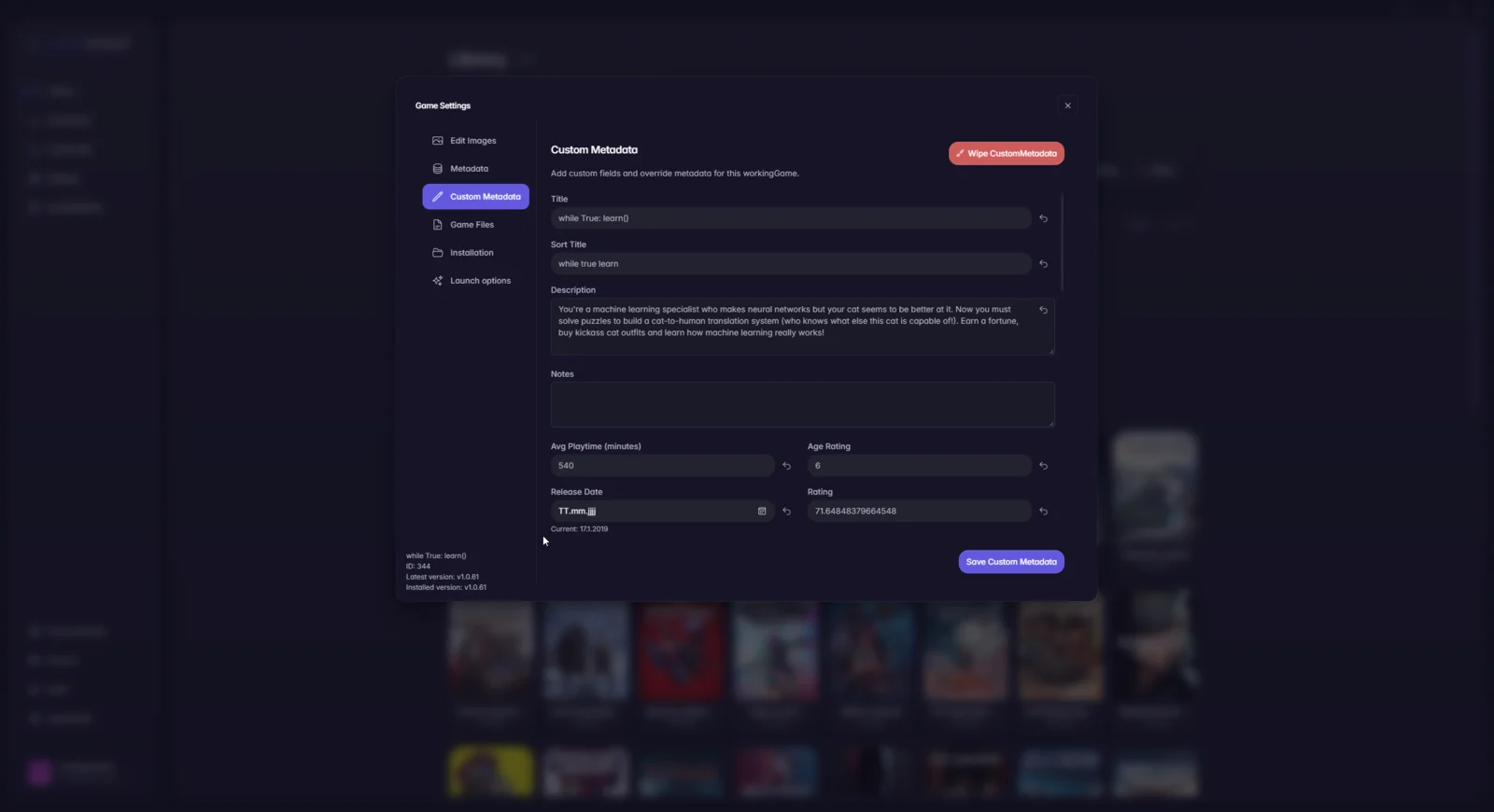
Open the game settings from the gear icon on the box art or on the game page.
- Edit images: replace box art or background by upload, drag and drop or URL.
- Metadata: remap or unmap metadata per provider and re-fetch a provider.
- Custom metadata: overwrite single fields such as description, genres or tags. Multiple entries in one field are comma-separated.
Changes affect every user on the server.
Editing users
Open your avatar in the top left corner and the gear icon in the panel that opens. Edit images changes avatar and background, Edit details changes your account data.
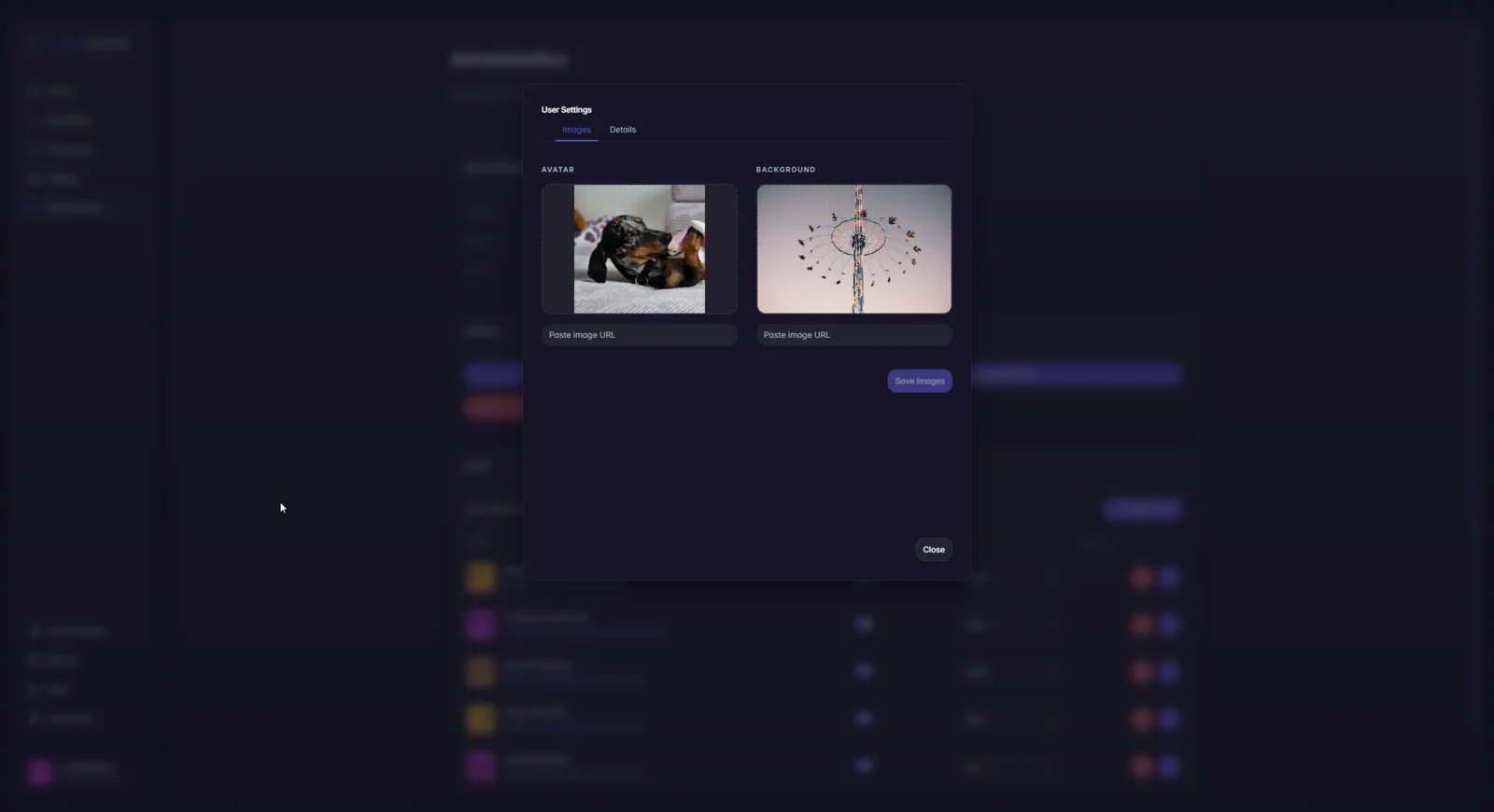
Members with the ADMIN role can do the same for other users in the
administration dashboard.
Administration
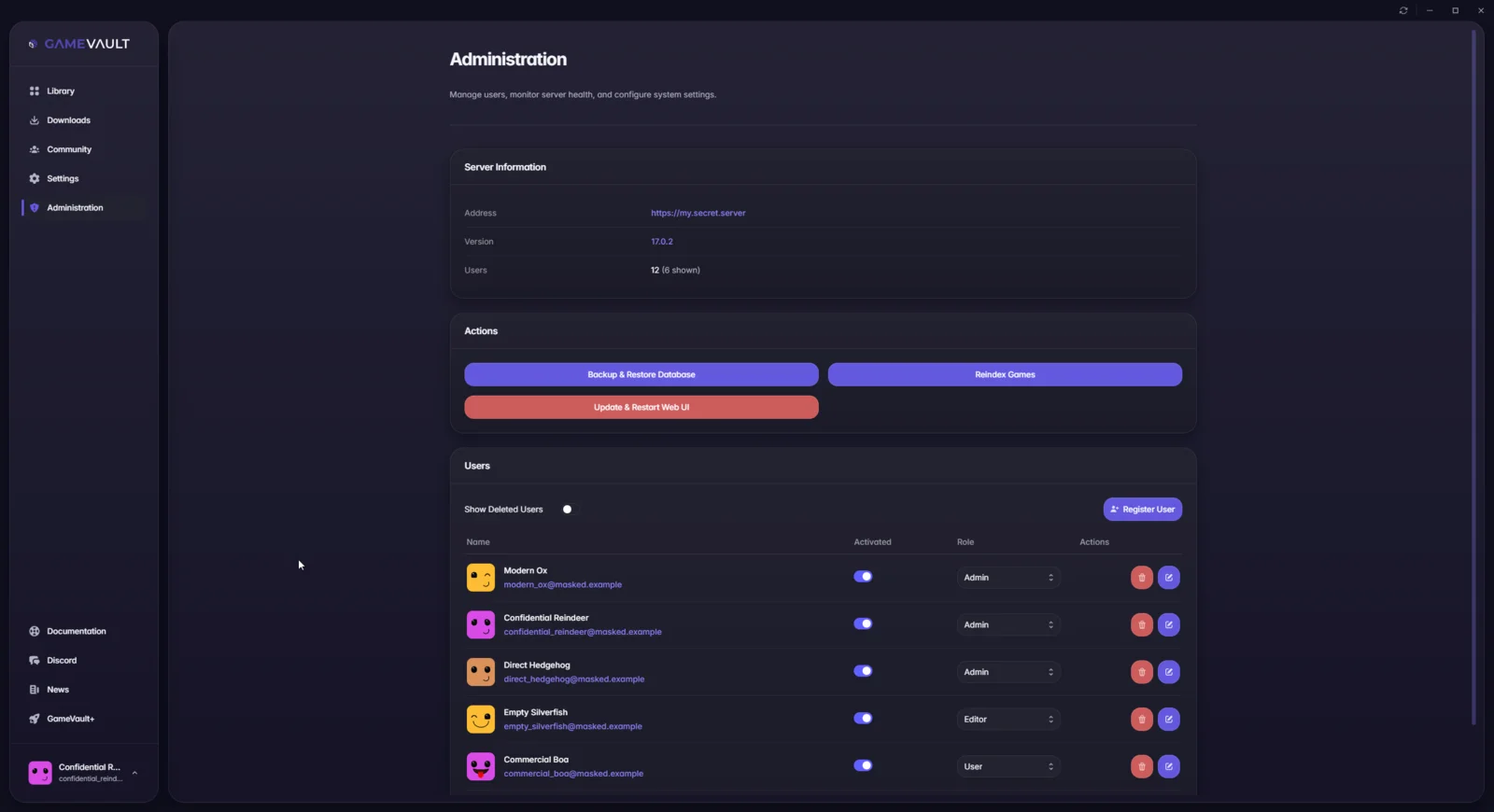
The administration page is visible to admins. It shows the server address, version and user count, holds Backup & restore database, Reindex games and Update & restart Web UI, and lists every user with their role and activation state.
Gamepad navigation
GameVault 2 supports gamepad navigation, which is what you want on a Steam Deck or a couch setup. The D-pad or left stick moves the focus ring, A activates the focused element and B goes back. The same navigation works in the Web UI when the browser exposes the Gamepad API.
Minimising and exiting
Closing the window does not quit the client: it keeps running in the tray so playtime tracking continues. To quit, right-click the tray icon and choose Exit. Starting GameVault again while it runs in the tray only brings the existing window back.