Settings
GameVault 2 groups its settings into categories in the left sidebar. Some settings exist only in the desktop app; the Web UI shows the subset that makes sense in a browser.
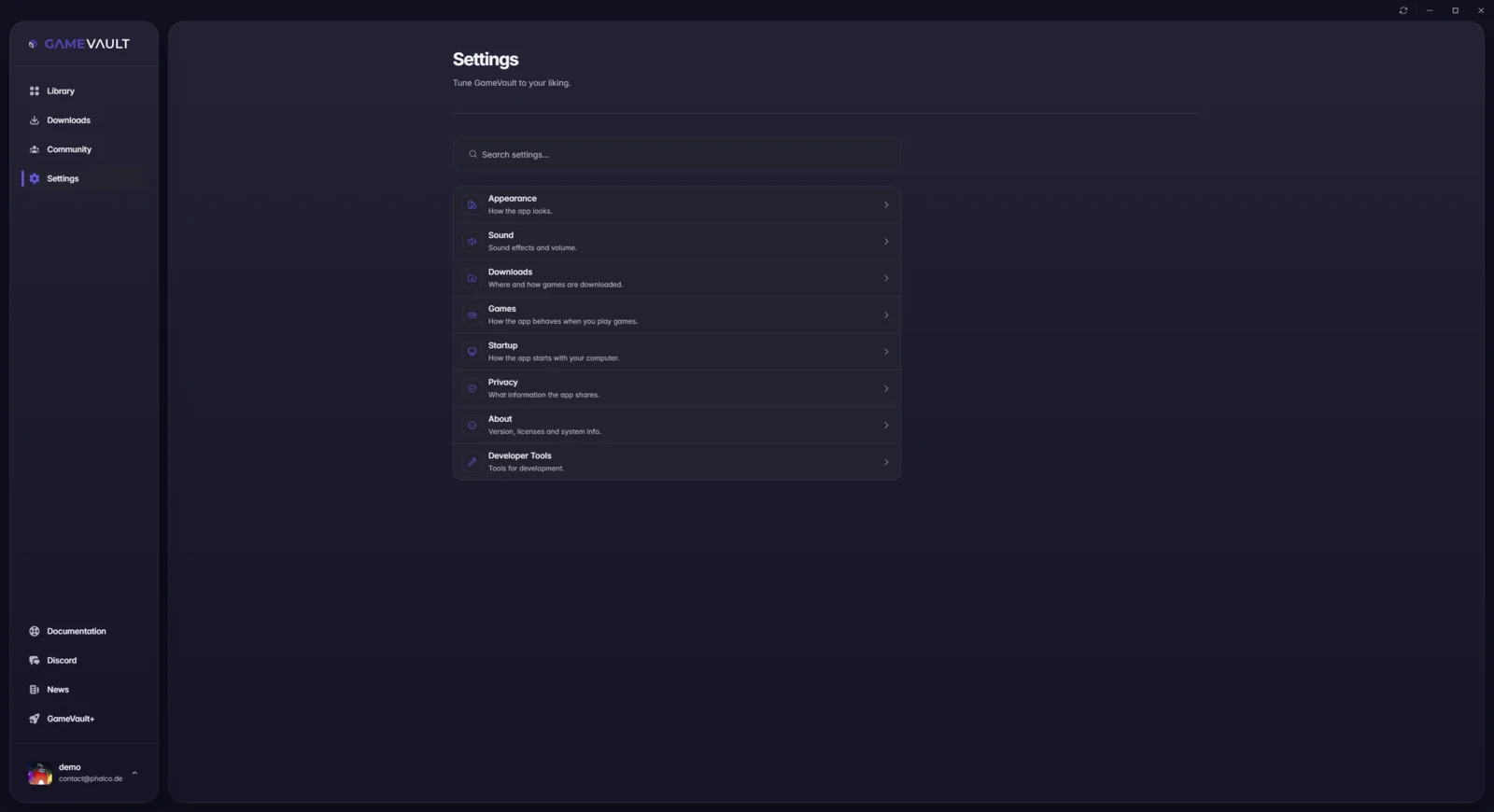 The settings overview, with the search box above the categories
Downloads
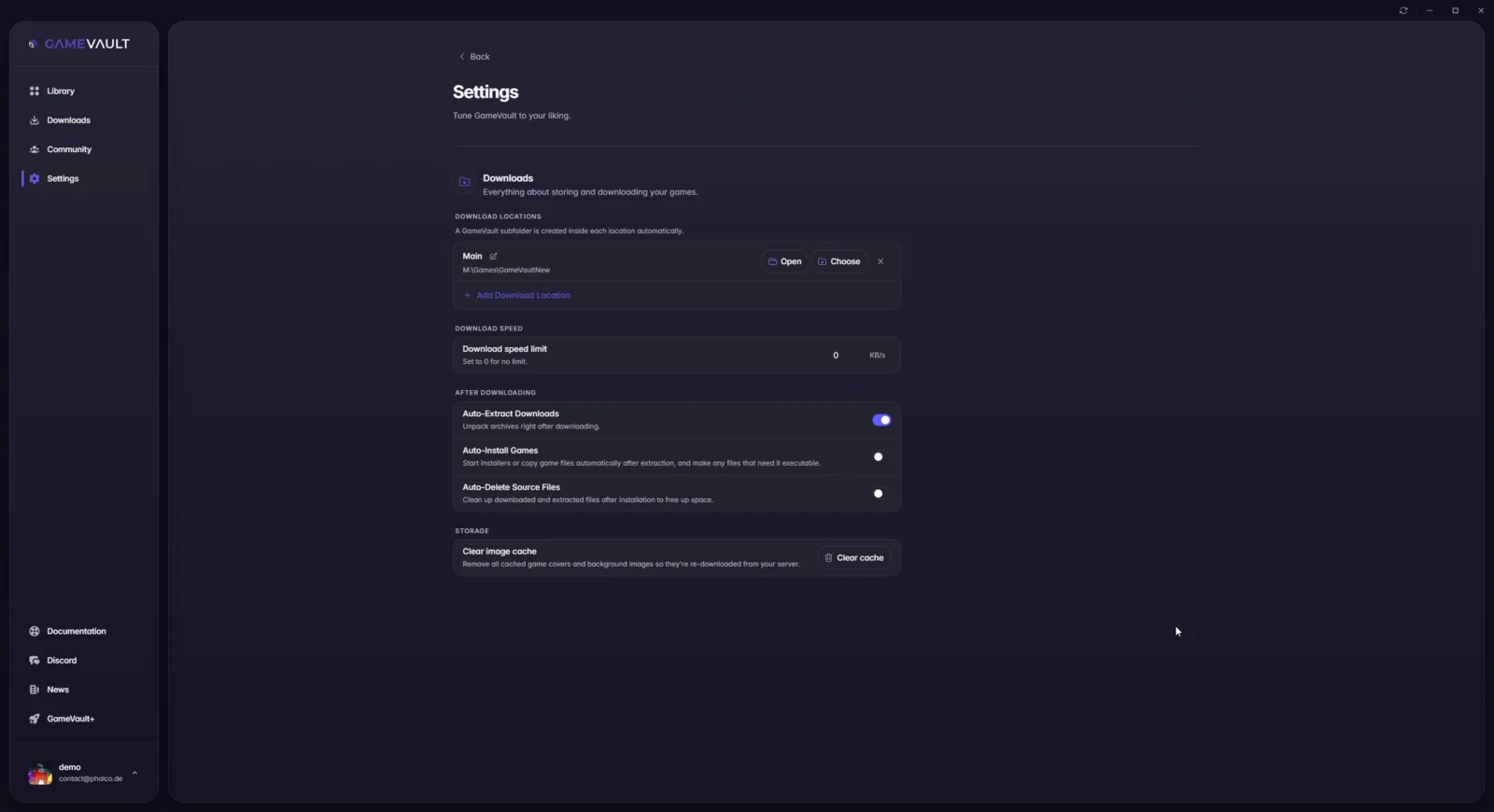
- Download locations: root folders for downloads and installations; the per-game structure is described under data locations.
- Download speed limit: bandwidth cap in KB/s,
0means unlimited. - Auto-extract downloads: unpack archives right after download.
- Auto-install games: start installers or copy portable games automatically, and mark files executable where needed.
- Auto-delete source files: remove archives and extracted files after a successful installation.
- Clear image cache: drop cached covers and backgrounds.
Appearance
- Theme: light, dark or follow the system.
- Zoom: scale the interface.
- Streamer / OPSEC mode: mask user names, emails and the server URL; see OPSEC mode.
- Smooth scrolling and hardware acceleration: rendering switches for Linux/WebKitGTK systems.
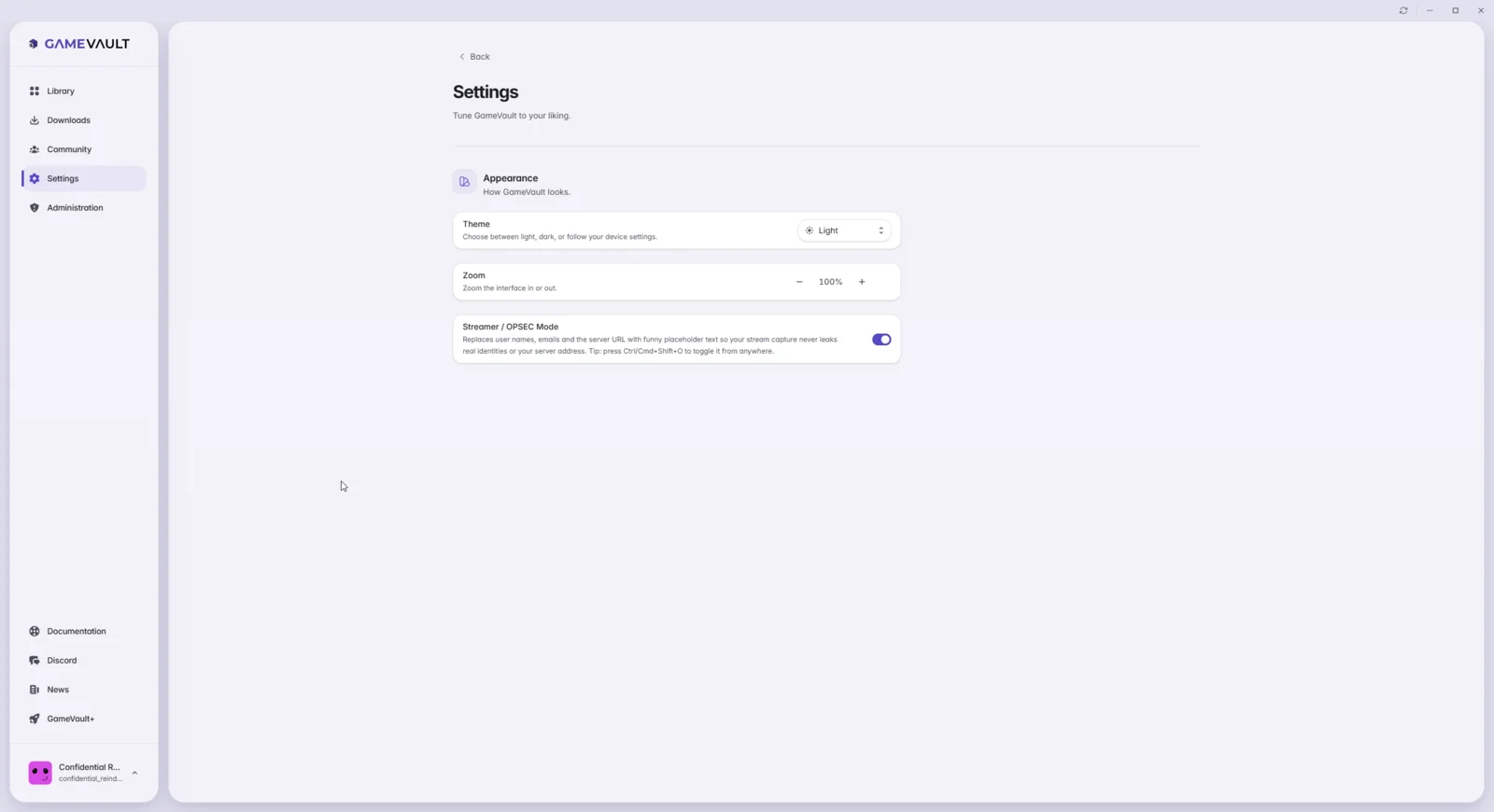 Theme, zoom and OPSEC mode, here in the light theme
Sound
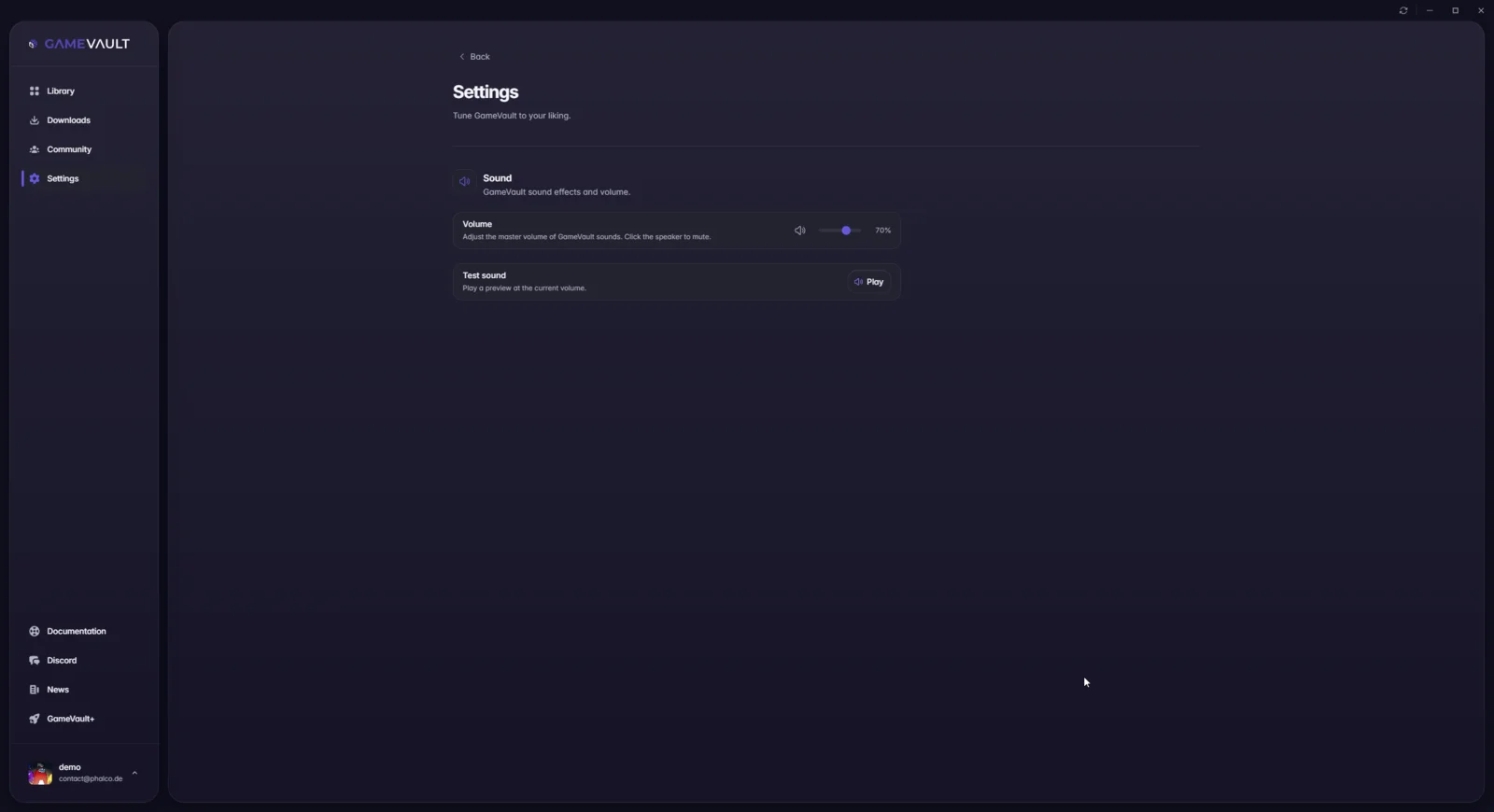
Master volume and per-event sound effects. A test button previews the current volume.
Startup
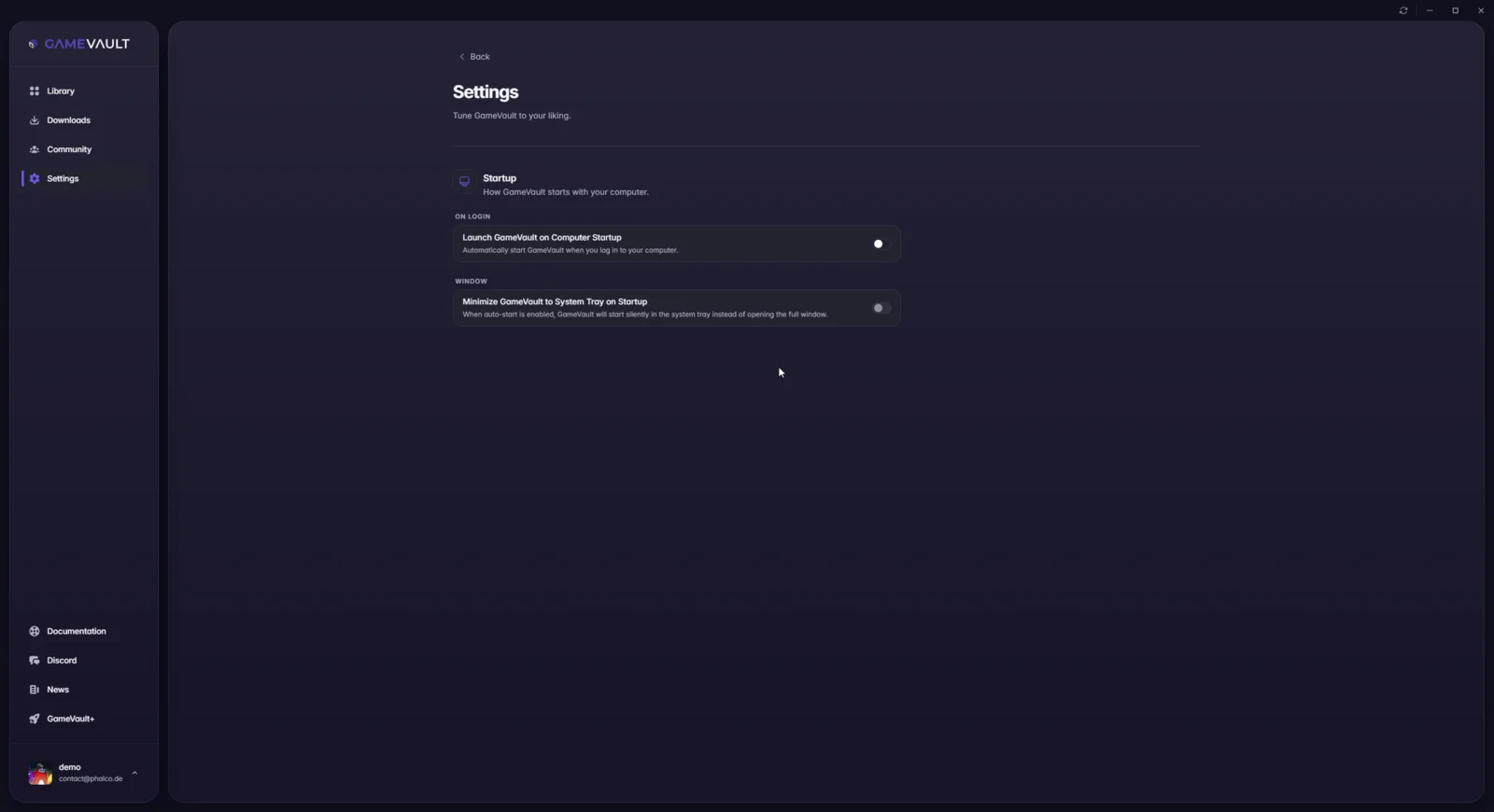
- Launch GameVault on computer startup.
- Minimize to system tray on startup.
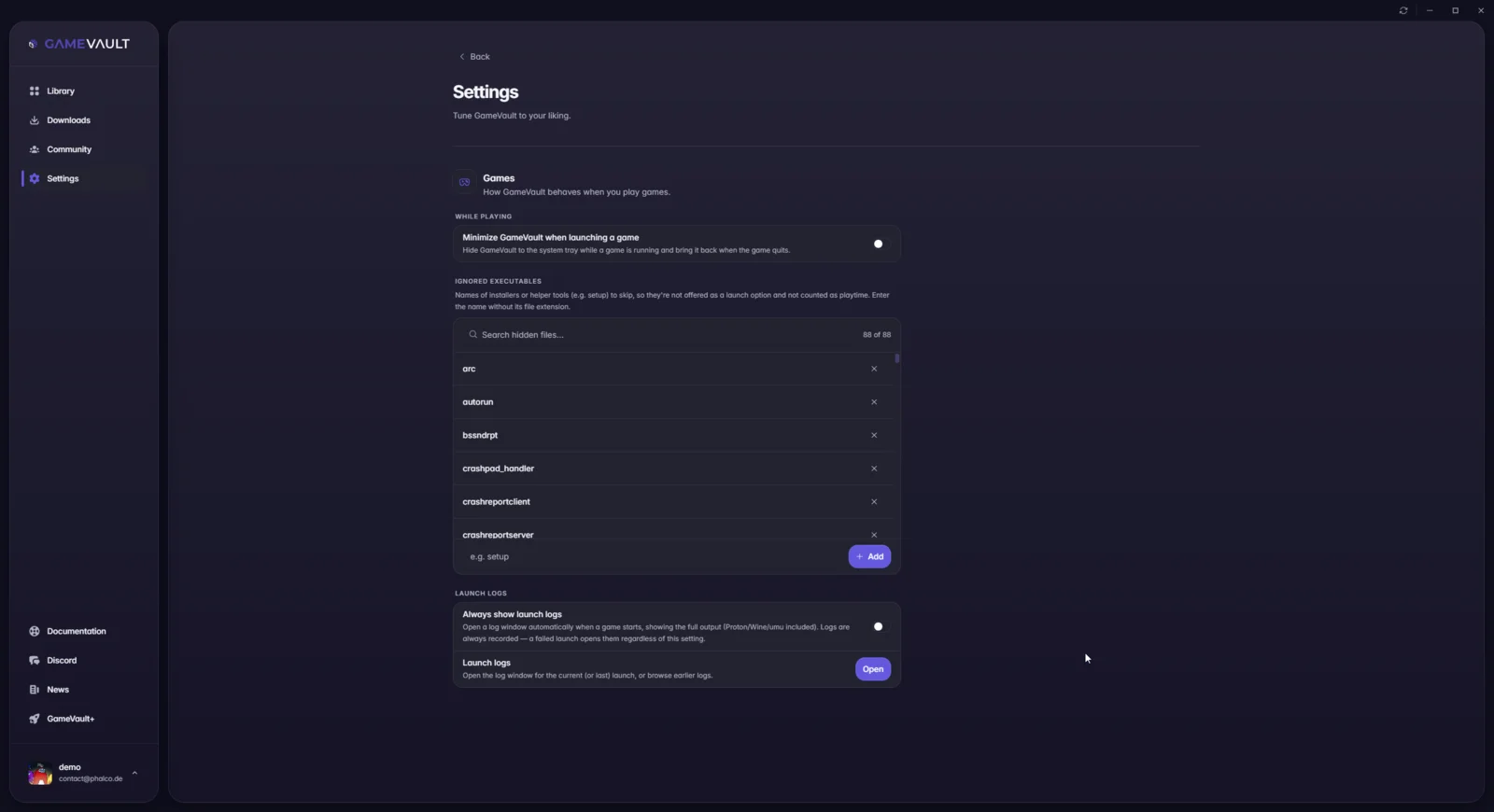
Games
- Minimize when launching a game: hide GameVault while a game runs and restore it on exit.
- Ignore list: files and folders the client must skip entirely.
- Launch logs: open the log window automatically and browse previous launches. Useful for Wine/Proton problems; the files are listed under data locations.
- Wine/Proton prefix directory (Linux only): base folder for the isolated prefix of each game.
Privacy
- Usage analytics: anonymous usage statistics. Off means no telemetry.
About
Version, license, third-party licenses, system information and, in the desktop app, the Updates section with the update channel and auto-update status.
Developer tools
Developer tools must be unlocked before the update channel picker appears. They contain diagnostics for bug reports: build info, settings dump, verbose diagnostic logging, toast and download previews, and the WebView devtools.
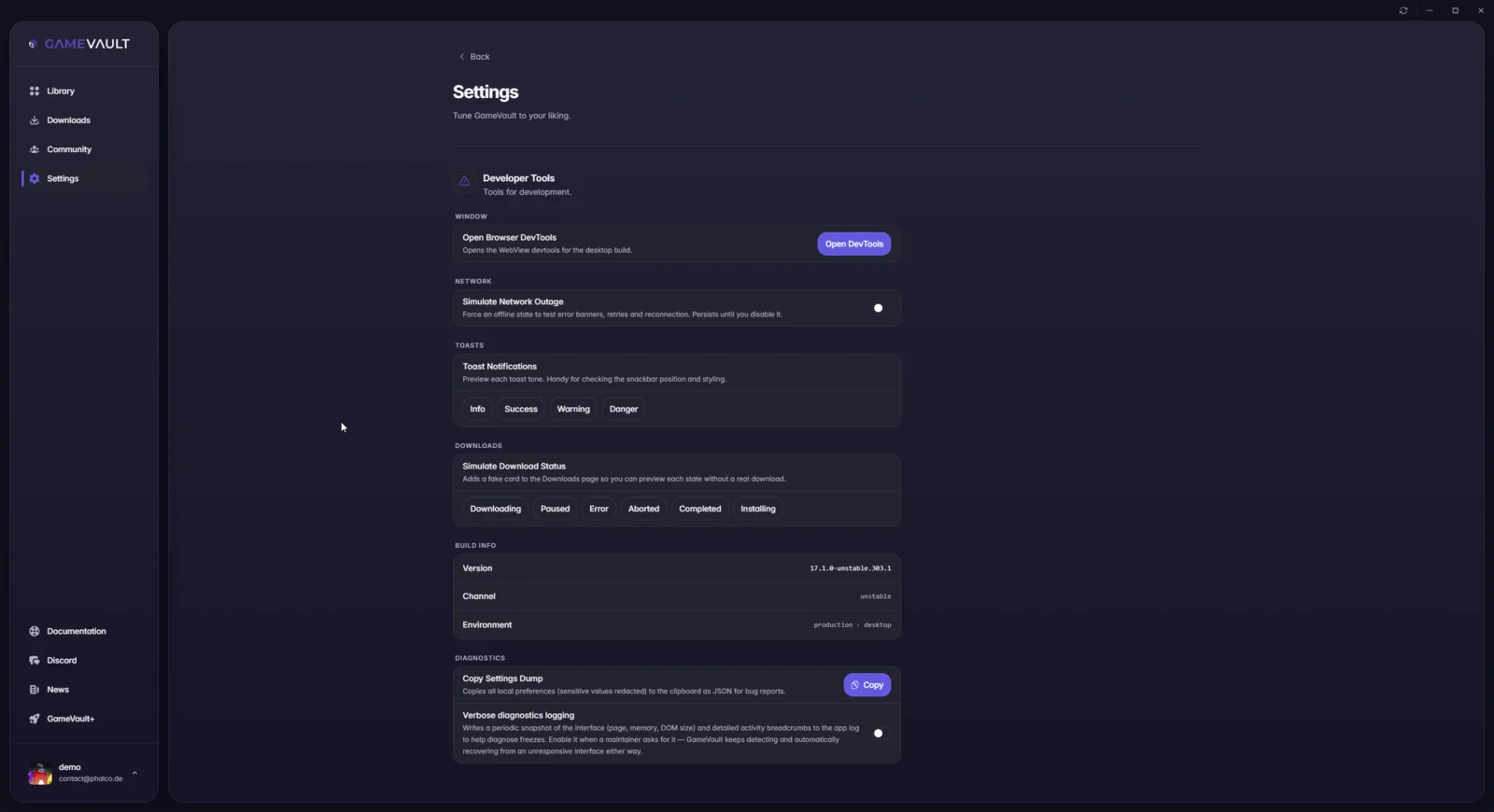
The browser build shows Simulate desktop app instead of desktop-only settings, which is handy for checking layouts without installing the app.
Next steps
- Updating: update channels and manual updates
- Data locations