Connect to a server
This page explains how to add a GameVault server to the desktop client. The same login window exists in GameVault 2 and GameVault 1.
First start
The first window you see is the profile selection.
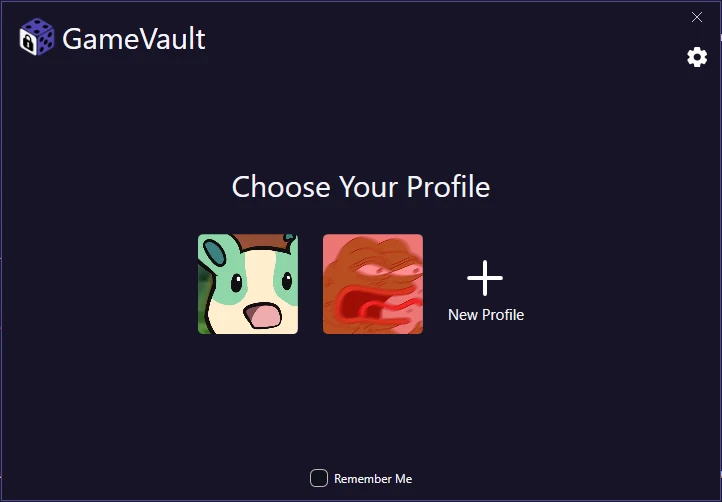 Profile selection on first start
Create at least one profile to continue. A profile stores the server address, the account and the session for one server, so you can keep several profiles if you use more than one server.
Multiple profiles on one device are a GameVault+ feature in GameVault 1. GameVault 2 currently supports one active profile per installation.
If you have no profiles and no server yet, the client offers a demo profile.
Server URL: demo.gamevau.lt
Username: demo
Password: demodemo
The demo profile disappears once you create a profile of your own.
Sign in with an existing account
Choose New Profile → Sign In.
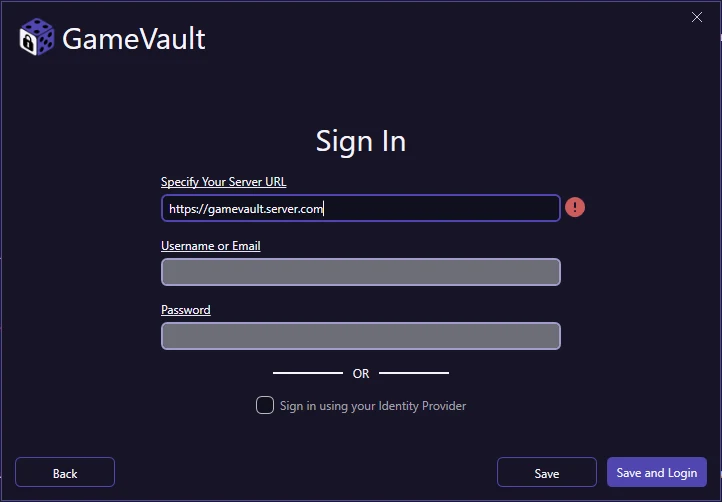 Signing in with an existing account
Enter the server URL, your username and password. Check Sign in using your Identity Provider if the server uses SSO.
Use Save to create the profile, or Save and Login to create it and sign in immediately.
Create a new account
Choose New Profile → Sign Up.
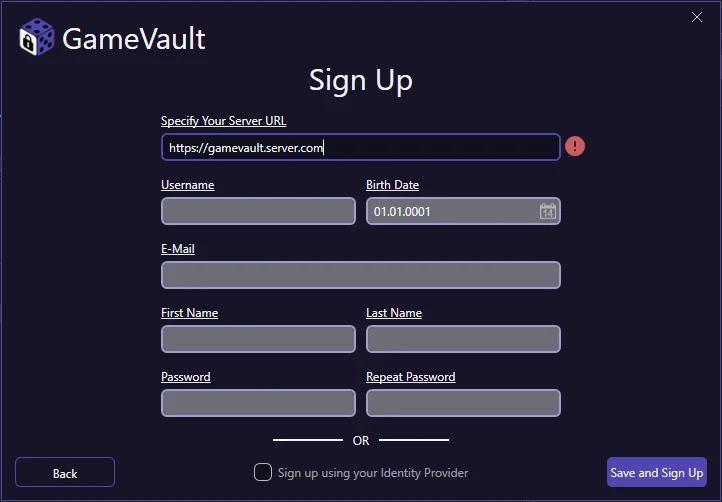 Creating a new account
Enter the server URL and fill out the remaining fields. Depending on the server configuration, the new user is either activated immediately or has to be approved by an administrator:
- Automatic activation: you are signed in right after saving.
- Manual activation: the client shows a pending screen until an admin activates the account, then signs you in automatically.
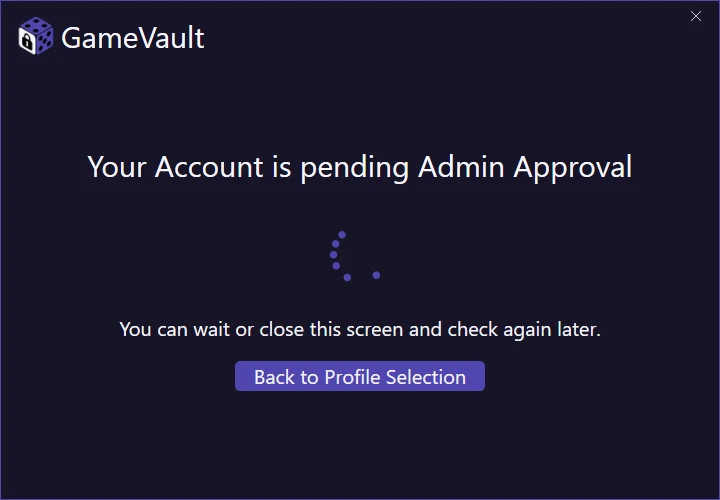 Waiting for administrator approval
Server input validation
The client validates the server URL while you type. A reachable and valid GameVault server is marked with a green check mark. A red symbol means the server could not be reached; hover it for the error details.
Some fields are grayed out when the server requires them or when SSO is enforced. The validation messages explain which requirement applies.
SSO login
With SSO you authenticate through the identity provider configured on the server (for example Google, Microsoft or GitHub) instead of a local password. After checking Sign in using your Identity Provider, only the server URL stays editable. A popup redirects you to the provider's login page.
OAuth2/SSO setup is documented under authentication.
Additional request headers
Open the gear icon in the login window to add request headers. Each header is sent with every request the client makes, which helps when your server sits behind a proxy that expects custom headers.
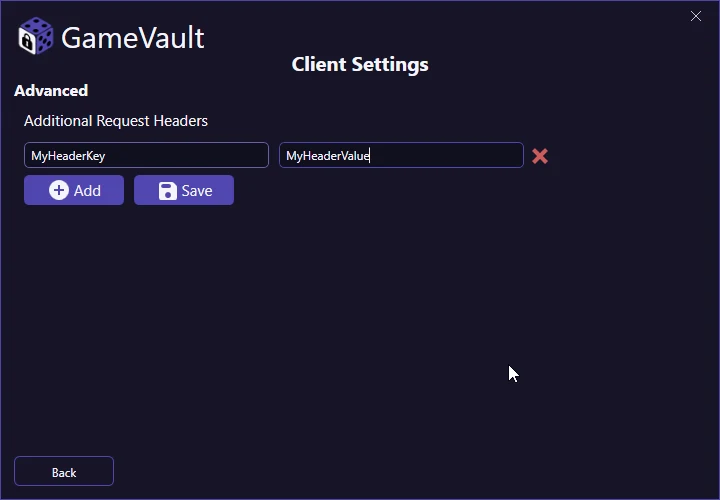 Request headers for reverse proxies