Usage
GameVault 1 is a tabbed desktop window: Library, Game, Downloads, Community, User and Admin, plus the settings window behind the gear icon and the news dialog in the bottom left.
Login window
See Connect to a server.
Library
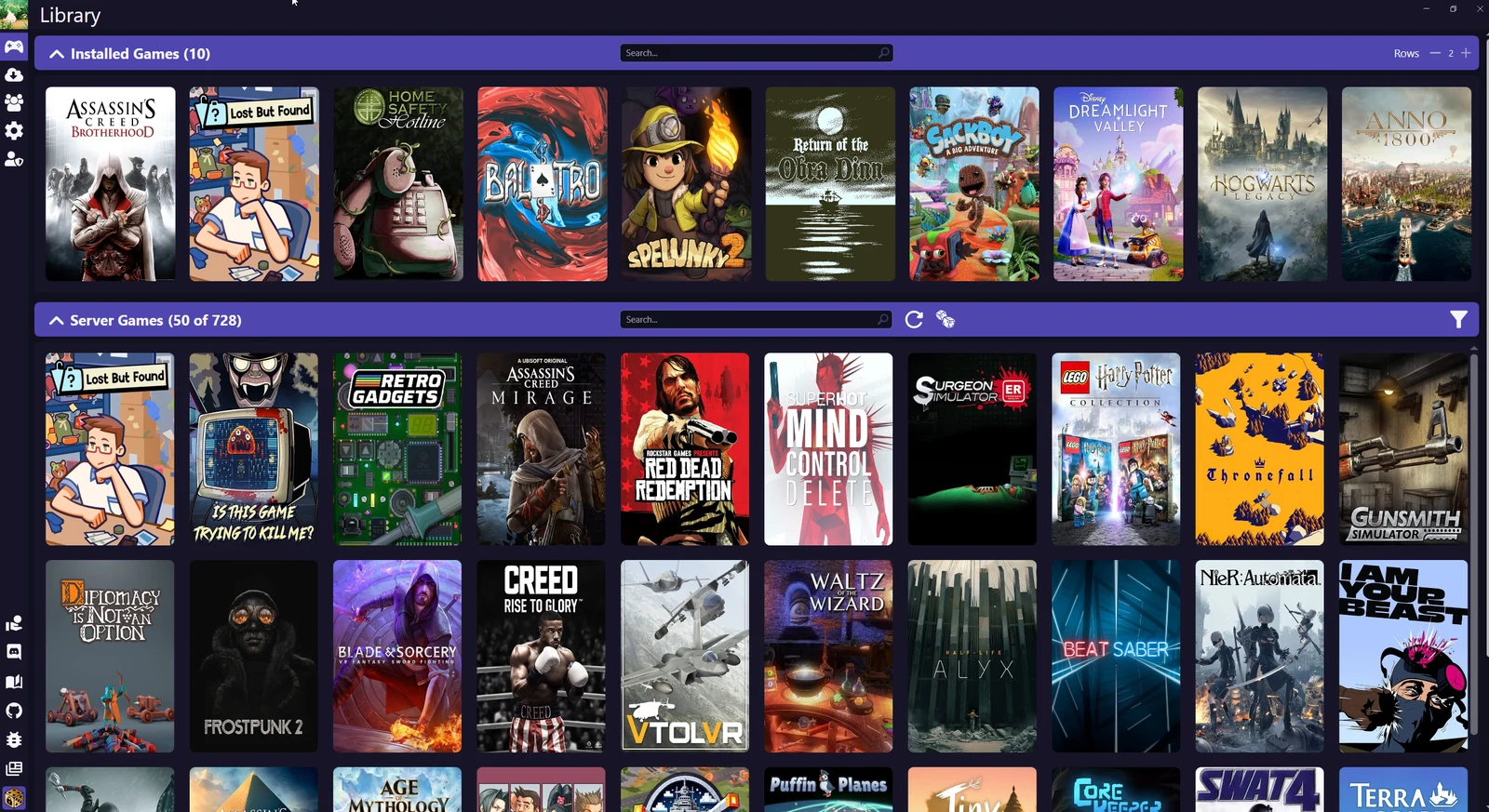 Library tab
- Browse available and installed games, collapsing sections as needed.
- Launch installed games with the play button on the box art, download others with the download button.
- Open game settings with the gear icon on the box art.
- The paged library loads at most 80 games at a time to save bandwidth.
- Use the dice icon for a random game, the filter icon for server-side filters and the search bar for everything else.
Game page
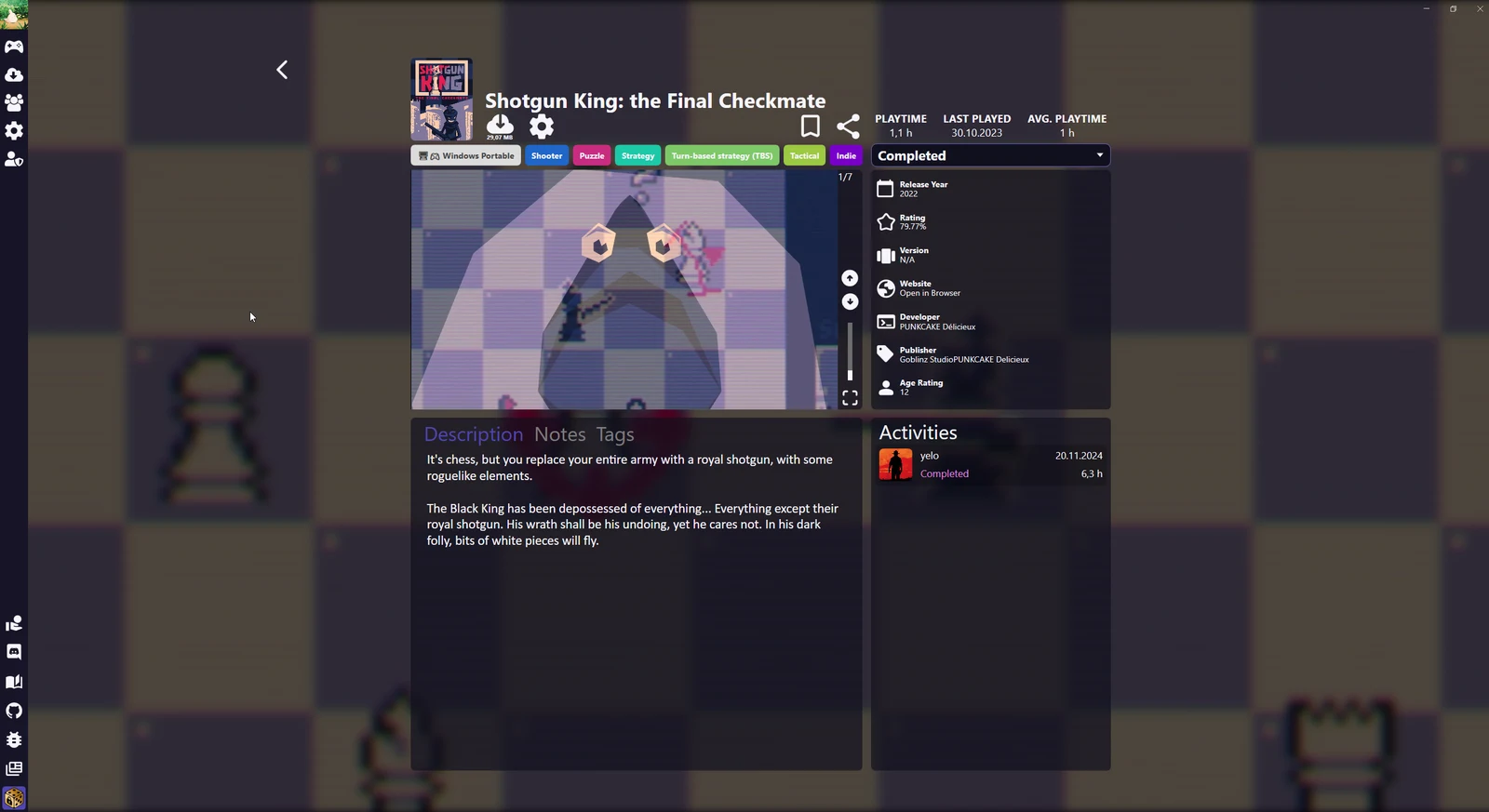 Game page
- Media player for trailers, gameplay videos and screenshots.
- Description and notes, rendered as Markdown.
- Progress states such as completed or aborted, plus your progress and that of other users.
- Download the game or launch the installed copy, bookmark it, create a share link.
- Go back to the library with the arrow button or
ESC.
Game settings
Open the gear icon on the box art or on the game page.
Your computer
Settings for the local installation.
- Installation: show the installation folder, check disk usage, uninstall the game.
- Launch options: pick the default executable and its launch arguments, create desktop shortcuts.
Server
Settings that affect every user on the server. Visible to editors and higher.
- Edit game images: set a different box art or background image by URL or upload, with a shortcut for image search.
- Metadata: see the metadata providers, change their priority, unmap a provider (its header turns grey and the actions are disabled), re-fetch a provider, or remap metadata under Remap game.
- Custom metadata: overwrite individual fields such as description, genres or tags, with a preview of the current values. The reload icon next to a field loads the current value into the text box; the button in the top right clears all overwrites. Multiple entries in one field are comma-separated.
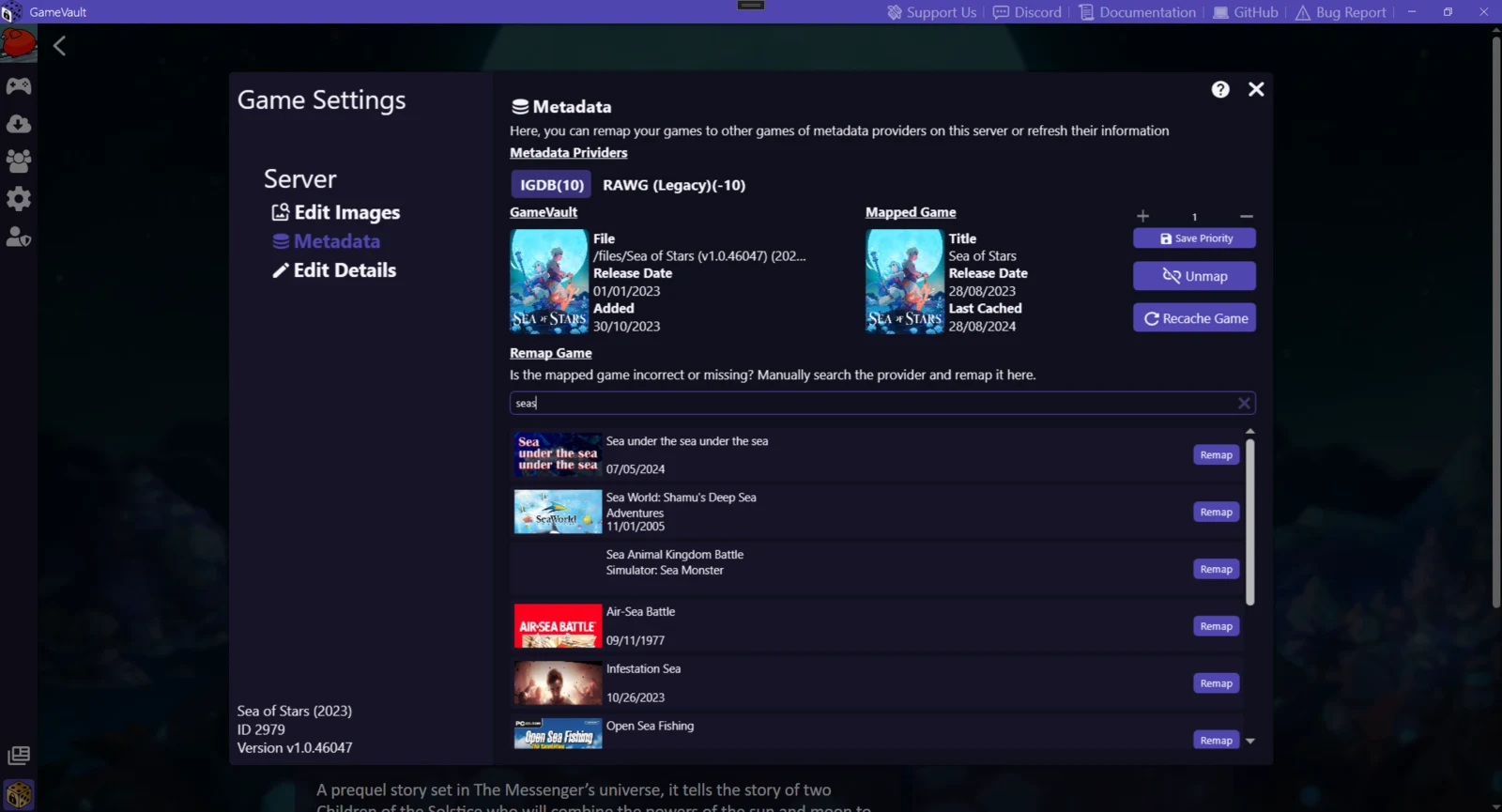 Metadata providers
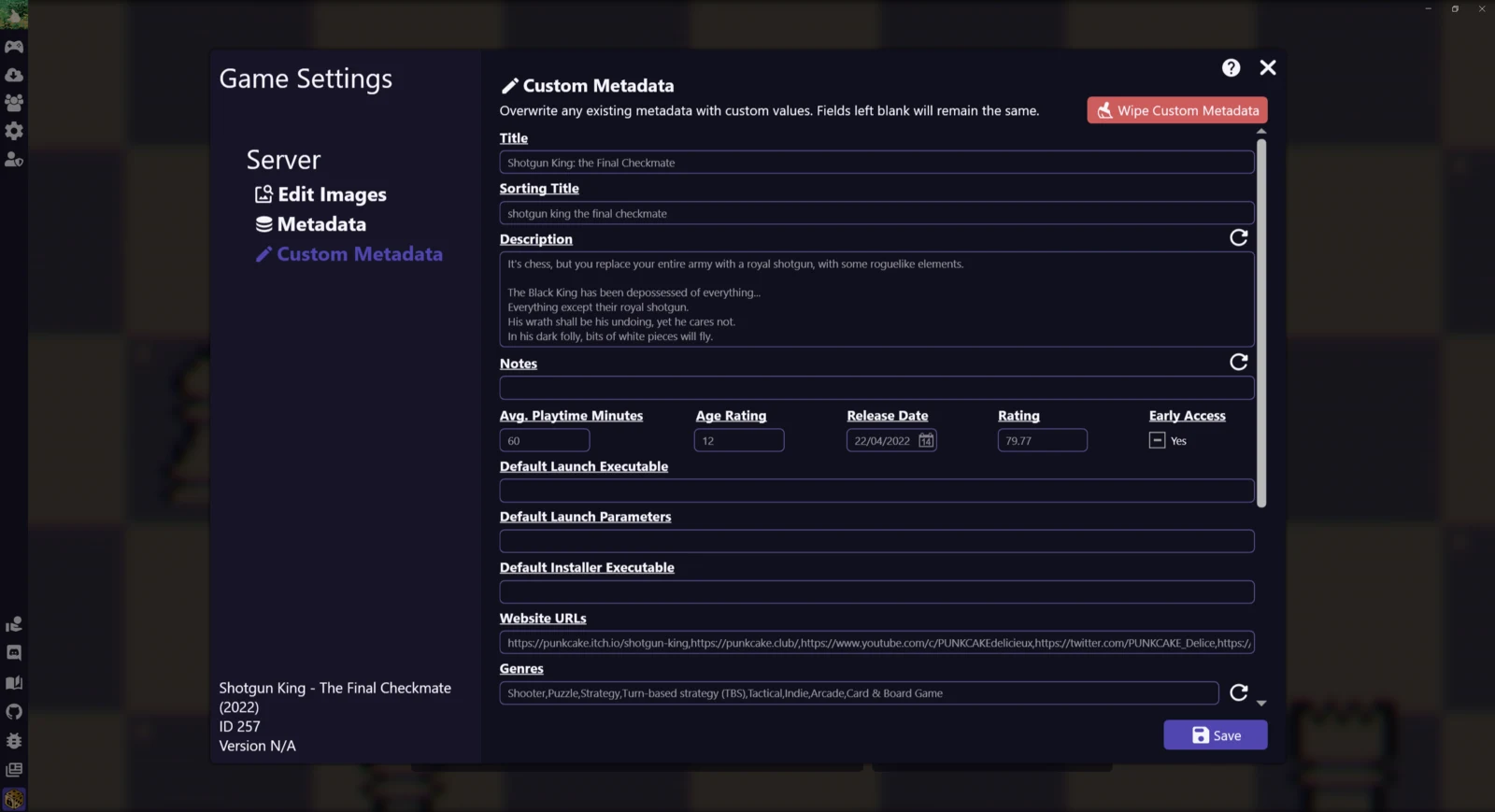 Custom metadata
Downloads
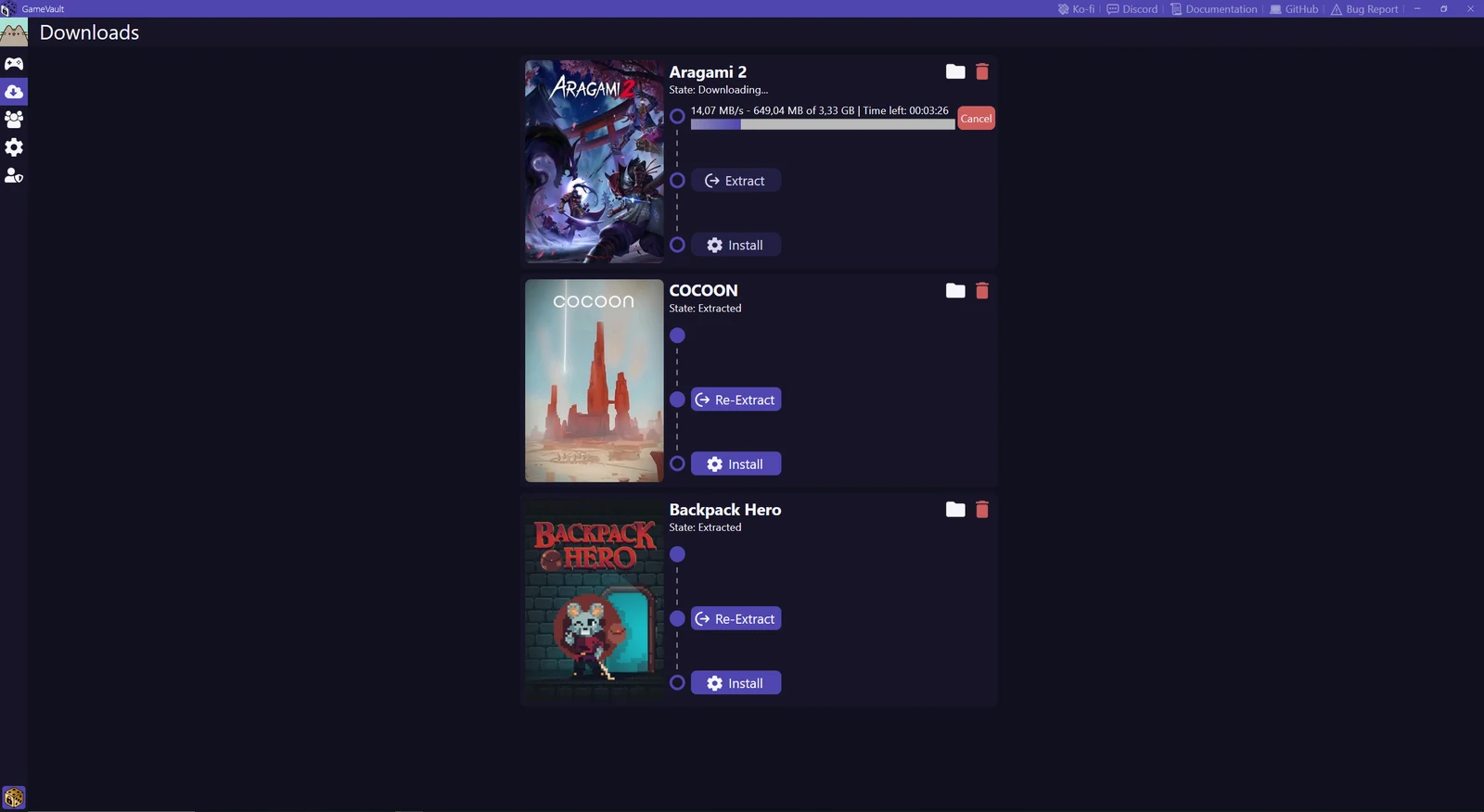 Downloads tab
- Monitor running and finished downloads with statistics and progress.
- Abort a download.
- Extract archives and follow the extraction progress.
- Install the game according to its type.
- Open the download folder or delete downloaded files.
Community
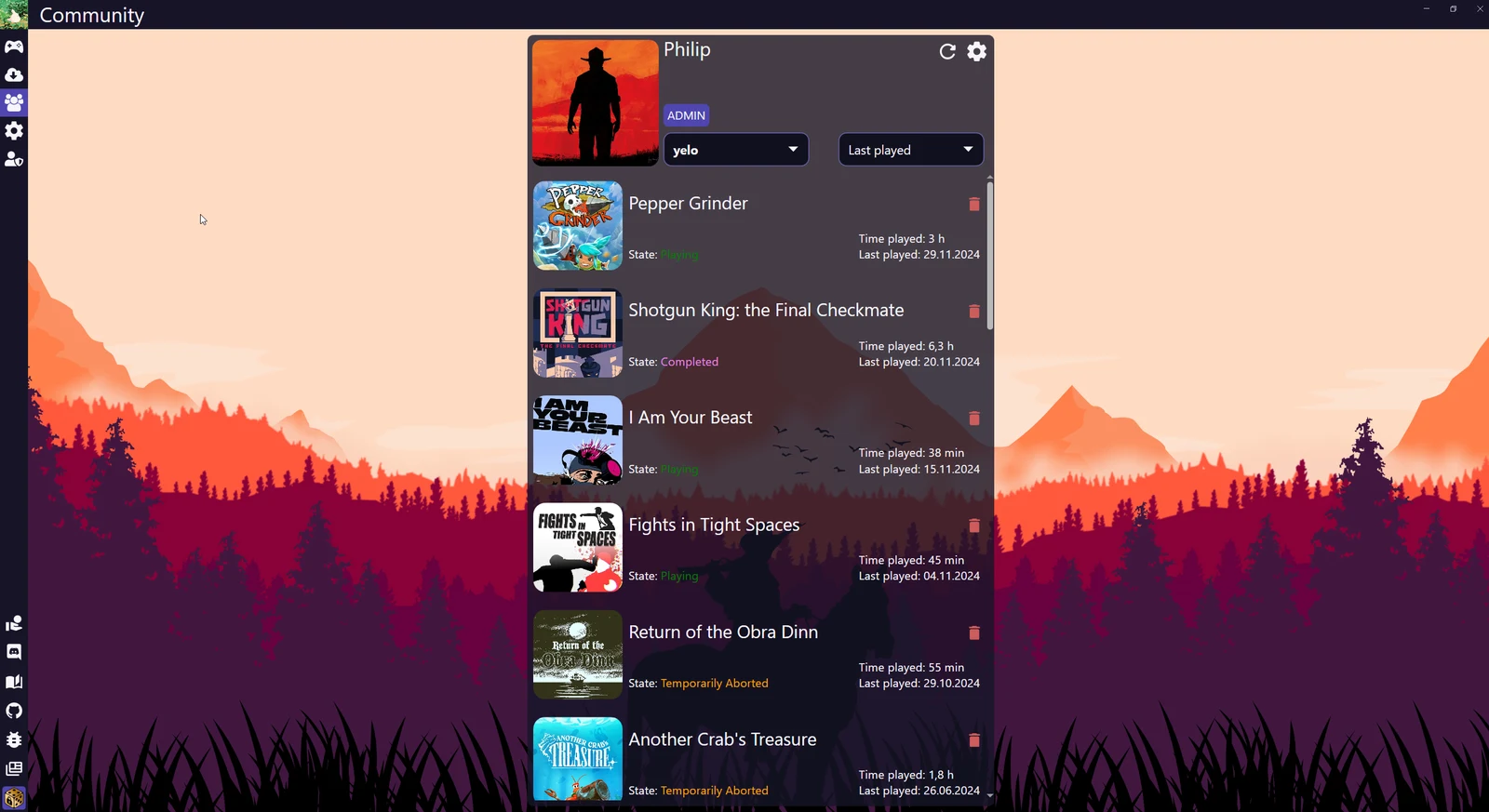 Community tab
- See every user on the server and select one to see their progress.
- Sort or delete progress entries.
- Edit user details and reload progress.
User profile
Open your avatar, then the gear icon in the panel.
- Edit images: avatar and background by URL or upload.
- Edit details: account data, password changes with confirmation.
- Copy your own API key.
Administration
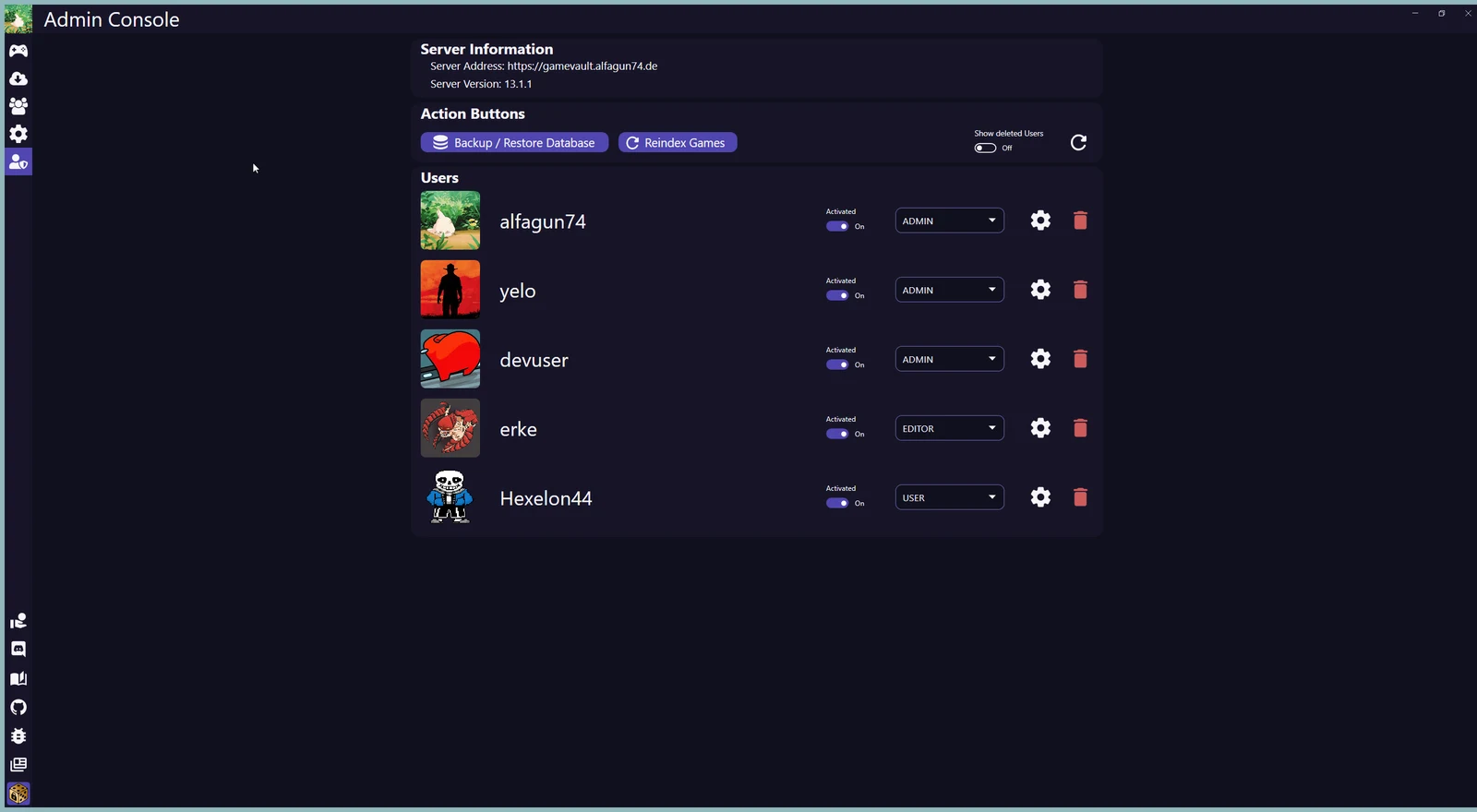 Admin tab
Visible to admins only.
- View, activate, deactivate and edit user roles.
- Delete or restore users.
- Open a user's profile in the community tab by clicking the avatar.
- Re-index games on the server.
News
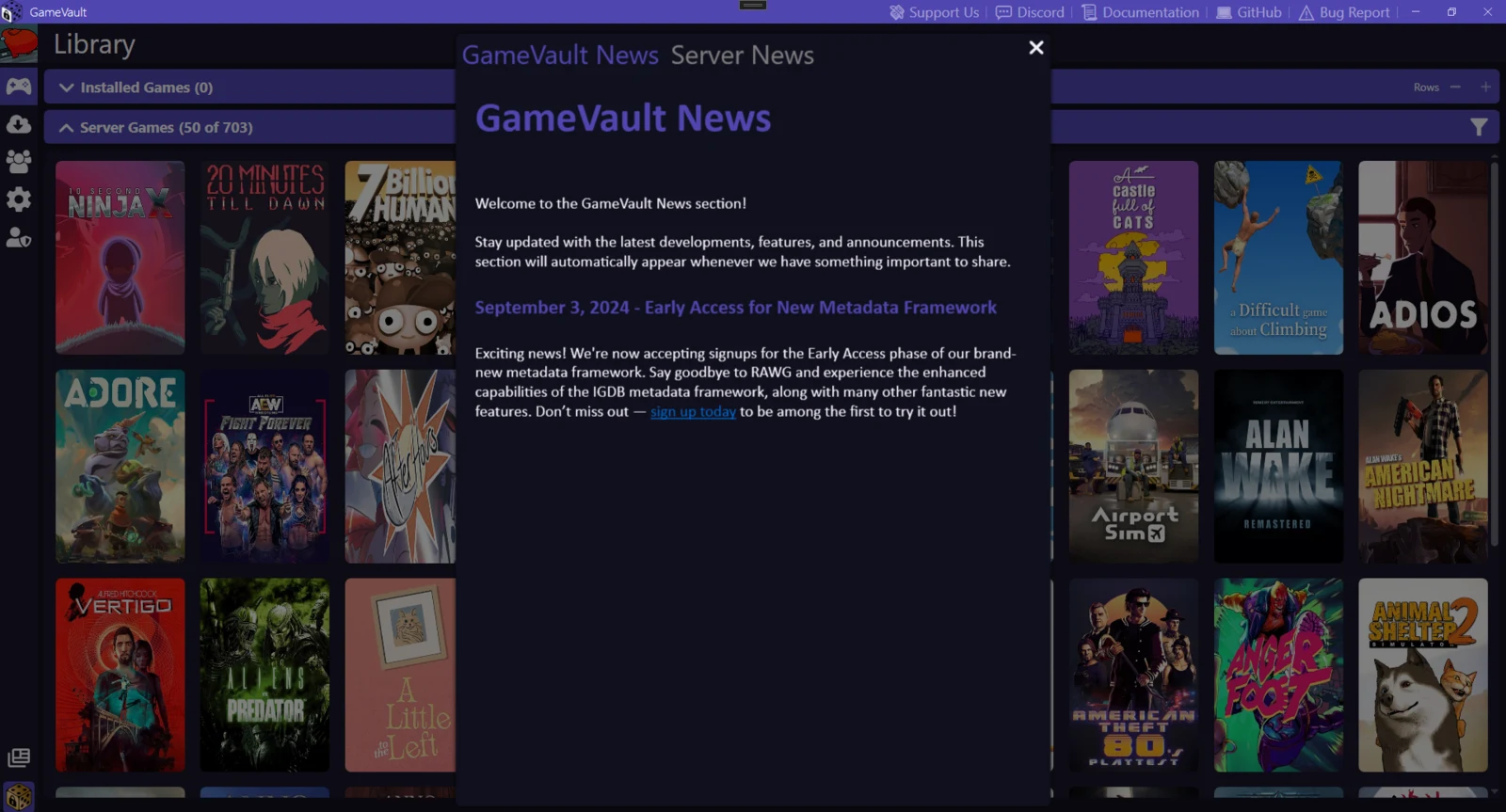 News dialog
- The button in the bottom left opens GameVault news and your server's news.
- A red badge marks new posts.
- News is rendered as Markdown. Admins can edit server news in the built-in
editor, which writes to the server's
news.md; see Server news.
Tray and exit
Closing the window hides GameVault in the system tray so playtime tracking continues. A one-time notification explains this on the first close. To quit, right-click the tray icon and choose Exit. Starting GameVault again while it runs in the tray only brings the window back.